
IP Geolocation Shopify Integration Guide

Overview

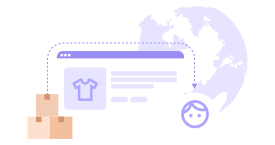
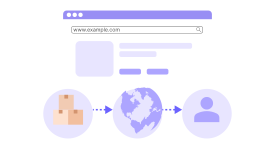
IP Geolocation is a powerful, free Shopify app that delivers a seamless international shopping experience for your customers. Whether you manage multiple markets within one Shopify store or operate separate stores, IP Geolocation automatically detects your visitors' locations and guides them to the right storefront, in their preferred language and with the correct experience.



1.Who Is This App For?

IP Geolocation is ideal for Shopify merchants who:

  • Sell internationally.
  • Manage multiple countries and languages.
  • Want to maintain a consistent global brand experience.
  • Run multiple Shopify stores (EU, US, UK, etc.).
  • Use Shopify Markets and want smarter geolocation handling.

Whether you're a small business testing new regions or an established brand with global operations, IP Geolocation makes cross-border shopping feel natural and intuitive.

Key Features

  • Automatic Country Detection: Identifies where your visitors are browsing from and directs them to the most relevant store or market.
  • Smart Popup with Consent: A customizable popup asks visitors if they'd like to switch to their local store, respecting their choice and remembering it for future visits.
  • Multi-Store Connection: Link up to three separate Shopify stores for free, allowing visitors to move seamlessly between them without realizing they've switched domains.
  • Unlimited Custom Translations: Create fully translated popup text in any language. Choose between language-only translations or country-specific translations for precision.
  • Manual Market Selector: Give customers control with a selector that lets them manually switch regions or languages anytime while browsing.
  • Advanced Redirect Rules: Control exactly when and where the popup appears based on visitor type, country, and URL patterns.
  • SEO-Friendly Redirects: Built with search engines in mind to ensure each localized storefront is properly indexed.
  • UTM Tracking Support: Preserve marketing attribution across redirects for accurate campaign tracking.
Note

Unlike other apps that charge for store connections and translations, IP Geolocation offers these features completely free (up to 3 connected stores).

Getting Started

This guide will walk you through installing IP Geolocation and completing your initial setup. The entire process takes just a few minutes.

1.Installation

  1. Install from Shopify App Store: Visit the Shopify App Store, search for "IP Geolocation," and click Install. You'll be redirected to your Shopify admin to approve permissions.
  2. Access the Dashboard: Once installed, open the app from your Shopify admin under Apps > IP Geolocation.

2.Initial Setup Checklist

When you first open the app, a progress bar at the top of your dashboard will track three essential tasks:

  1. Connect Stores: If you operate multiple Shopify stores, connect them so visitors can switch seamlessly.
    • If you only use one store with Shopify Markets, you can skip this step.
  2. Configure Rules: Set up rules to control when and where the popup appears.
  3. Add Translations: Create custom popup text in different languages.
    • This is optional. If skipped, the app uses the default text configured in the App Embed settings.

3.Enabling App Embeds (Crucial Step)

The popup and market selector are configured through Shopify's Theme Editor, not the app dashboard.

  1. Navigate to Online Store > Themes.
  2. Click Customize on your active theme.
  3. Click the App embeds icon (left sidebar).
  4. Toggle ON for Geo Redirect Popup and Geo Market Selector .
  5. Save your changes.
Important

If you do not toggle these embeds on, the popup and selector will not appear on your store, regardless of your dashboard settings.

Dashboard & Analytics

The IP Geolocation dashboard is your command center for monitoring visitor activity and market settings.

1.Key Metrics

  • Geolocation Lookups: Total times the app has detected a visitor's location. This indicates your total traffic volume processed by the app.
Important

Your plan includes 1,500 geolocation lookups per day.

  • Successful Redirects: How many times visitors accepted a switch to a different market or store.
  • Connected Stores: The number of separate Shopify stores linked (Max: 3).
  • Translations Created: Number of custom translation sets active.

2.Current Markets

The app automatically syncs markets configured in your Shopify settings (Settings > Markets).

  • Manual Sync: If a market is missing (e.g., you just added, deleted or updated a market in Shopify), click the Sync button on the dashboard to refresh the list immediately.
Homepage screenshot
Click to expand

Configuring Redirect Rules

Navigate to the Rules page to control logic. This determines who sees the popup.

1.Visitor Targeting

  • Show to All Visitors: The popup appears for everyone. (Safest option to ensure no one is missed).
  • Show to Specific Countries Only: Good for testing new markets before a global rollout.
  • Hide from Specific Countries: Use this to exclude your home market where redirects aren't necessary.

2.First-Time Visitor Behavior

  • Always Show Popup: Ensures maximum visibility. Every new visitor gets a choice.
  • Show Only on Wrong Storefront: The popup only appears if the visitor is in a region that doesn't match the current store.
    • Best Practice: Use "Show Only on Wrong Storefront" to reduce friction. If a French customer lands on the French store, they shouldn't be bothered by a popup.

3.Returning Visitor Behavior

  • Always Redirect to Saved Preference: Automatically redirects returning users to their previously chosen store.
  • Redirect Only if Location Matches: Checks if the visitor is still in the same physical location before redirecting. Useful if your customers travel frequently.
    • This option will check the visitor’s location every time they visit your store, which may cause the Geolocation Lookups limit to be reached quickly.

4.URL Exclusion Rules

Prevent the popup from appearing on specific pages (e.g., Checkout, Privacy Policy).

  • Exact Match: /pages/about (Excludes only this specific page).
  • Single-Level Wildcard: /collections/* (Excludes collections and immediate subpages).
  • Multi-Level Wildcard: /blogs/** (Excludes blogs and all nested sub-paths).
Redirect Rules 1st screenshot
Click to expand

Translations (Localization)

Create a welcoming experience by speaking your customer's language.

1.Strategies

  1. Language Only: Matches based on browser language (e.g., all French speakers see the French message).
  2. Country and Language: Matches specific combos (e.g., French speakers in Canada see a specific message vs. French speakers in France).
Important

Changing your strategy (e.g., from "Language Only" to "Country and Language") will delete existing translations. Choose your strategy carefully before starting.

2.How to Add

  1. Go to the Translations tab.
  2. Click Create.
  3. Select the Language (and Country, if applicable).
  4. Enter the translated Title, Body, and Button text.
  5. Save.
Translations screenshot
Click to expand

Connecting Multiple Stores

If you have separate Shopify stores (e.g., my-brand.com and my-brand.co.uk ), use this feature to link them.

1.How It Works

  1. Generate ID: Go to Connect Stores on the dashboard. Copy your Connection ID.
  2. Share ID: Send this ID to the admin of the other store.
  3. Connect: The other admin enters your ID into their "Connect a Store" field.
  4. Resolve Conflicts: If both stores claim the same market (e.g., both ship to Canada), the app will ask you to designate the "owner" of that market.
Important

Limit: You can connect up to 3 stores for free. App Requirement: IP Geolocation must be installed on all participating stores. Disconnection: Disconnecting removes the link but deletes no data.

Connet-Store screenshot
Click to expand

Design & Customization (Theme Editor)

Customize the look and feel via Online Store > Themes > Customize > App Embeds.

1.Geo Redirect Popup

  • Content: Customize Title, Subtitle, and Button Text.
  • Dynamic Variables: Use placeholders to personalize the message:
    • {country} - e.g., "France"
    • {city} - e.g., "Paris"
    • {currency_code} - e.g., "EUR"
    • {currency_symbol} - e.g., "€"
    • Example: "Hi! You are visiting from {country}. Shop in {currency_code}?"
  • Styling: Adjust colors, rounded corners, overlay opacity, and fonts to match your brand.

2.Geo Market Selector

The selector allows users to manually switch markets (e.g., in the Footer or Header).

  • Classic Selector: Embeds directly into a specific HTML element on your page.
    • Requires: CSS Selector (e.g., .header__icons or #footer-menu ).
  • Modal Selector: A floating button or link that opens a popup window when clicked.
    • Easier Setup: Does not require finding CSS classes.

Troubleshooting

1.Common Issues

Popup Not Appearing

  • Check App Embeds: Is Geo Redirect Popup toggled ON in the Theme Editor?
  • Check Rules: Did you hide the popup for your own country (making it invisible to you)?
  • Browser Cache: If you accepted the popup previously, you are now a "Returning Visitor." Test in Incognito/Private mode.

Markets Not Syncing

  • Manual Sync: Click the Sync button on the dashboard.
  • Shopify Settings: Ensure the market is active in Shopify Admin > Settings > Markets.

Redirects Not Working

  • Browser Blocking: Some strict browser privacy settings may block redirects.
  • Store Connection: Verify that the Connection Status is "Active" in the dashboard.

Frequently Asked Questions

Yes, it is completely free. You can connect up to three stores, create unlimited translations, and use all features at no cost. There are no hidden fees or premium tiers.
Yes, the Connect Stores feature allows you to link up to three separate Shopify stores together. Visitors can switch between connected stores seamlessly.
The app will detect the location of the VPN server, not the visitor's physical home. This may result in the wrong market being suggested. However, visitors can always use the Market Selector to manually correct this.
Language-only translations match visitors based solely on their browser language. Country-language translations match visitors based on both their country and language, allowing you to create separate text for French speakers in France versus French speakers in Canada, for example.
No. The app loads asynchronously, meaning it runs in the background and does not block your page content from loading. Most visitors will not notice any performance impact.
Currently, the free plan supports up to three connected stores. If you have a complex enterprise setup requiring more, please contact support.
Yes, IP Geolocation is fully compatible with Shopify Markets. If you manage multiple markets within one store, the app detects them automatically and handles the redirection logic.
We use industry-standard IP geolocation databases, which are typically accurate to the country level for 99% of visitors.
No, translations are optional. If you don't add custom translations, the app will use the default text you configure in the app embeds settings for all visitors.
Yes, connected stores can only be owned by 1 store.
The app uses client-side redirects and does not interfere with hreflang tags or your sitemap. Search engine bots can still crawl and index your localized store versions correctly.
Go to the Rules tab in the dashboard. Under "URL Exclusion Rules," add the path to your policy page (e.g., /policies/privacy-policy ).

Subscribe Our Newsletter

Get the latest in geolocation tech, straight to your inbox.