
IPGeolocation Zapier Integration

Overview

The Zapier + IPGeolocation integration makes it simple to use the full IPGeolocation.io APIs inside your Zap workflows. You do not need to write code or handle API requests because everything can be automated through clear and simple actions.

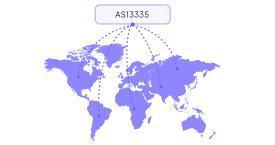
With this integration, you can quickly get helpful information about any IP address. This includes location details, network ownership, security risk information, user agent data, time zone details, and even basic astronomy information. You can use this data to improve your workflows, personalize user experiences, and make your automations more secure.

It allows you to automate retrieval of:

  • Geolocation information for any IP address
  • Threat intelligence and security risk details
  • Network ownership and ASN information
  • Time zone data and time conversion tools
  • Astronomy information such as sunrise and sunset
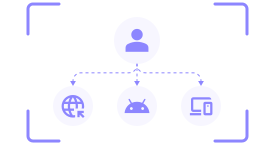
  • User agent details including browser, operating system, and device type

The integration includes 12 Action Modules, grouped into 6 core categories:

CategoryModules
GeolocationSingle IP Lookup, Bulk IP Lookup
IP SecurityIP Security Lookup, Bulk IP Security Lookup
Network IntelligenceASN Lookup, Abuse Contact Lookup
Time ServicesTimezone Information, Time Conversion
AstronomyAstronomy Details, Astronomy Time Series
User-Agent ParsingSingle Parsing, Bulk Parsing

API Key & Connection Setup

To use IPGeolocation.io with Zapier, you need a valid API Key. Follow these steps carefully:

1.Create or log in to your IPGeolocation.io account

  • Go to IPGeolocation.io.
  • If you don’t have an account, click Sign Up and complete the registration.
  • If you already have an account, click Sign in and enter your credentials.

2.Obtain your API Key

  • After logging in, go to your dashboard.
  • Copy your API Key — you’ll need it to connect Zapier with IPGeolocation.io.

3.Open Zapier and create a zap

  • Go to zapier.com and log in.
  • Click Create a new zap from your dashboard.
  • You will see a canvas where you can add modules (actions that perform tasks).

4.Add an IPGeolocation module

  • Click the action button to add a module.
  • Search for IPGeolocation in the module search bar.
  • Select any action event (e.g., Find Geolocation Information or Find IP Security).
Image
Click to expand

5.Set up the connection

  • In the module settings, find the account field and click Sign in.
  • Paste the API Key you copied earlier into the required field.
  • Click Yes, Continue to IPGeolocation to authenticate the connection.
Image
Click to expand

6.Test the connection

  • Zapier will attempt to connect using your API Key.
  • If successful, the popup will close and you may proceed with the actions.
  • If there’s an error, double-check your API Key and make sure it’s active and valid for the plan you’re using.
Image
Click to expand

7.Use your connection

  • Once connected, this API Key is available for all IPGeolocation modules in your Zaps.
  • You can now use it to perform actions like Find Geolocation Information, Find User Agent, or Find Bulk IP Geolocation, depending on your API plan.

Actions Availability across our Plans

We offer four API plans: Developer, Standard, Security, and Advanced.

The availability of actions depends on the plan you are subscribed to. The following table provides a detailed overview of which actions are included in each plan, helping you quickly identify the plan that suits your needs.

ActionDeveloperStandardSecurityAdvance
Find Geolocation InformationTickTickCrossTick
Find Bulk IP GeolocationCrossTickCrossTick
Find IP SecurityCrossCrossTickCross
Find Bulk IP SecurityCrossCrossTickCross
Find ASN InformationCrossCrossCrossTick
Find Abuse InformationCrossCrossCrossTick
Find Astronomy InformationTickTickTickTick
Find Astronomy Timeseries InformationTickTickTickTick
Find Timezone InformationTickTickTickTick
Find Time ConversionTickTickTickTick
Find User AgentCrossTickTickTick
Find Bulk User AgentsCrossTickTickTick

For full pricing details and to choose your plan, see the pricing page.

Modules

Below is a structured reference of all modules in this integration.

1.Geolocation

1. Get IP Geolocation

Retrieves full geolocation data of a single IPv4/IPv6.

  • Input: IP Address
  • Outputs: country_name, city, latitude, longitude and many more

2. Get Bulk IP Geolocation

Retrieves geolocation for up to 50,000 IPs per request.

  • Input: Array of IPs
  • Outputs: Collection of geolocation objects
Image
Click to expand

2.Security

3. IP Security Lookup

Security insights such as proxy, VPN, TOR, threat score, cloud and proxy providers.

  • Input: IP Address
  • Outputs: security.is_proxy, security.is_vpn, security.threat_score, security.is_cloud_provider and more

4. Bulk IP Security Lookup

Security assessment for multiple IPs.

Image
Click to expand

3.Network Intelligence

5. Lookup ASN

Provides a simple way to retrieve accurate information about an Autonomous System Number (ASN) and its associated IPv4 and IPv6 address ranges.

  • Input: IP or ASN number
  • Outputs: asn.as_number, asn.organization and more
Image
Click to expand

6. Lookup Abuse Contact Information

Includes details such as the role, handle, organization name, kind (e.g., group or individual), and postal address. This information helps identify the entity responsible for handling abuse reports.

  • Input: IP Address
  • Outputs: abuse.emails, abuse.handle and more
Image
Click to expand

4.Time Services

Free Timezone API and Time conversion API provides date and time related information such as current time, date in various formats, week, month, year, time in unix timestamp, UTC/GMT offset and day light saving time from timezone name, any IPv4 or IPv6 address or geolocation coordinates, IATA code, ICAO code, or UN/LOCODE.

7. Get Timezone Info

It can be consumed with the following input variations:

  • For a Time Zone Name
  • For any Address (preferrably, city address)
  • For Location Coordinates (latitude & longitude)
  • For any IP address
  • For any IATA code
  • For any ICAO code
  • For any UN/LO Code
  • Outputs: time_zone.name, time_zone.current_time, time_zone.date_time_wti and more
Image
Click to expand

8. Time Conversion

Converts a time from one of following options

  • Convert Time using Time Zone Names
  • Convert Time using Location
  • Convert Time using Coordinates
  • Convert Time using IATA codes
  • Convert Time using ICAO codes
  • Convert Time using UN/LOCODEs

Output: Converted date/time

Image
Click to expand

5.Astronomy

Provides timings for sunrise, sunset, moonrise, moonset, sun azimuth, moon azimuth, sun altitude, moon altitude, sun distance from the earth and moon distance from the earth.

9. Get Astronomy Details

  • Outputs: astronomy.sunrise, astronomy.sunset, astronomy.moon_phase and many more.
Image
Click to expand

10. Astronomy Time Series Lookup

  • Outputs: Daily astronomy data for a defined date range.
Image
Click to expand

6.User-Agent Parsing

Provides detailed client system information, allowing for the detection of bots, crawlers, and potential attackers.

11. Parse User Agent String

  • Input: User agent string
  • Outputs: provides name, device and operating sysem information.
Image
Click to expand
  1. Parse Bulk User Agent Strings
  • Input: Array of User agent strings
  • Outputs: Collection of parsed user agent objects
Image
Click to expand

Use Cases

1.Geo‑Targeted Content Blocking

Modules: IP Geolocation, Filters, CMS Tool (WordPress, Webflow)

Scenario: Restrict certain content to specific countries.

  • Trigger: New user visits website.
  • Step 1: IP Geolocation: Detect user country.
  • Step 2: Filter: Block or allow access based on country.
  • Step 3: Action: Show country-specific content or redirect to localized page.

2.Real-Time Analytics & Dashboard Enrichment

Modules: IP Geolocation, Google Sheets/Databases, Formatter

Scenario: Add location data for website visitors in analytics dashboards.

  • Trigger: New form submission or event in Google Analytics.
  • Step 1: IP Geolocation: Capture city, region, and country.
  • Step 2: Formatter: Standardize location fields.
  • Step 3: Action: Update Google Sheet or database for reporting with enriched location info.

3.Automated Security Alerts for Suspicious Logins

Modules: IP Geolocation, Security Lookup, Slack/Email

Scenario: Detect logins from unusual locations and alert security team.

  • Trigger: User login in an app (Auth0, Firebase, etc.).
  • Step 1: IP Geolocation: Identify country & city.
  • Step 2: Security Lookup: Check if IP is from proxy/VPN.
  • Step 3: Filter: Only alert if location is unusual for that user or risky IP.
  • Action: Send Slack/Email alert to security team.

4.Time-Zone Aware Customer Support Routing

Modules: IP Geolocation, Timezone Info, CRM/Support Tool (Zendesk, Freshdesk)

Scenario: Assign tickets to agents in the customer’s local timezone.

  • Trigger: New support ticket submitted online.
  • Step 1: IP Geolocation: Identify customer location.
  • Step 2: Timezone Info: Determine their local time.
  • Step 3: Action: Assign ticket to agent currently working in that timezone or auto-schedule reply.

Subscribe Our Newsletter

Get the latest in geolocation tech, straight to your inbox.