



You need to secure your API key before it reaches production. Your IPGeolocation.io integration works in development, your requests return data, and everything looks good. But that key in your source code or frontend JavaScript is one deployment away from being exposed. If you have not set up your integration yet, start with the getting started tutorial first, then come back here before you deploy.
API key security is not something you add after launch. Before you go live, there are five solid steps that you should take to lock down your key: environment variables, a backend proxy, CORS-based authentication, key rotation, and usage monitoring. This tutorial walks through each one with code examples and IPGeolocation.io dashboard configuration steps.
TL;DR
- Store your API key in environment variables, never in source code or version control
- Use a backend proxy so the key never reaches the browser
- For client-side apps on paid plans, set up Request Origin (CORS) to authenticate without exposing the key
- Rotate keys from the dashboard and use separate keys per environment
- Monitor API usage in the dashboard to catch unauthorized consumption early
- IPGeolocation.io paid accounts can request API logs to check the origin IP of every call
If your key is in a .env file, your frontend calls are routed through a backend proxy or Request Origin, and you have usage monitoring in place, you are secure.
Why API Key Security Matters in Production
An API key hardcoded in frontend JavaScript is visible to anyone who opens browser developer tools. Once someone copies it, they can make requests against your account. You pay for the credits they consume, and you have no way to distinguish their traffic from yours without checking request logs.
This is not a hypothetical risk. Automated scanners crawl public GitHub repositories for committed API keys. If your key ends up in a commit, it can be discovered and abused within minutes.
IPGeolocation.io offers an API logs facility on paid accounts. You can request API logs from your Account Dashboard and check the origin IP of every API call. If you see IPs you do not recognize, your key is compromised and needs to be rotated immediately.
Store Your API Key in Environment Variables
The first rule is: never put your API key directly in your code. Instead, use environment variables and load your API Key from there. You can find your key in the API Keys section of your Account Dashboard. The API documentation covers all available endpoints, parameters, and response fields.
Create a .env file in your project root and add your API key like this:
IPGEO_API_KEY=your_api_key_here
Make sure the variable name is exactly IPGEO_API_KEY.
Node.js:
// Load environment variable from .env file
require('dotenv').config();
const API_KEY = process.env.IPGEO_API_KEY;

if (!API_KEY) {
  throw new Error('IPGEO_API_KEY environment variable is not set');
}

async function getGeolocation(ip) {
  try {
    const response = await fetch(
      `https://api.ipgeolocation.io/v3/ipgeo?apiKey=${API_KEY}&ip=${ip}`
    );

    if (!response.ok) {
      throw new Error(`API request failed: ${response.status}`);
    }

    return await response.json();
  } catch (error) {
    console.error('Geolocation lookup failed:', error.message);
    return null;
  }
}

(async () => {
  const data = await getGeolocation("1.1.1.1");
  console.log(data);
})();
Python:
import os
import requests
from dotenv import load_dotenv

load_dotenv()
api_key = os.environ.get("IPGEO_API_KEY")
if not api_key:
    raise ValueError("IPGEO_API_KEY environment variable is not set")

def get_geolocation(ip):
    try:
        response = requests.get(
            f"https://api.ipgeolocation.io/v3/ipgeo?apiKey={api_key}&ip={ip}"
        )
        response.raise_for_status()
        return response.json()
    except requests.RequestException as e:
        print(f"Geolocation lookup failed: {e}")
        return None

print(get_geolocation("8.8.8.8"))
PHP:
<?php
require __DIR__ . '/vendor/autoload.php';

$dotenv = Dotenv\Dotenv::createImmutable(__DIR__);
$dotenv->load();

$apiKey = $_ENV['IPGEO_API_KEY'] ?? null;

if (!$apiKey) {
    throw new RuntimeException('IPGEO_API_KEY environment variable is not set');
}

function getGeolocation(string $ip): ?array {
    global $apiKey;
    $url = "https://api.ipgeolocation.io/v3/ipgeo?apiKey={$apiKey}&ip={$ip}";
    $response = @file_get_contents($url);

    if ($response === false) {
        error_log("Geolocation lookup failed for IP: {$ip}");
        return null;
    }

    return json_decode($response, true);
}

print_r(getGeolocation("9.9.9.9"));
For local development, use a .env file and add it to .gitignore so it is never committed to version control. In production, set environment variables through the hosting platform's secrets manager or environment configuration settings.
Use a Backend Proxy Instead of Client-Side Calls
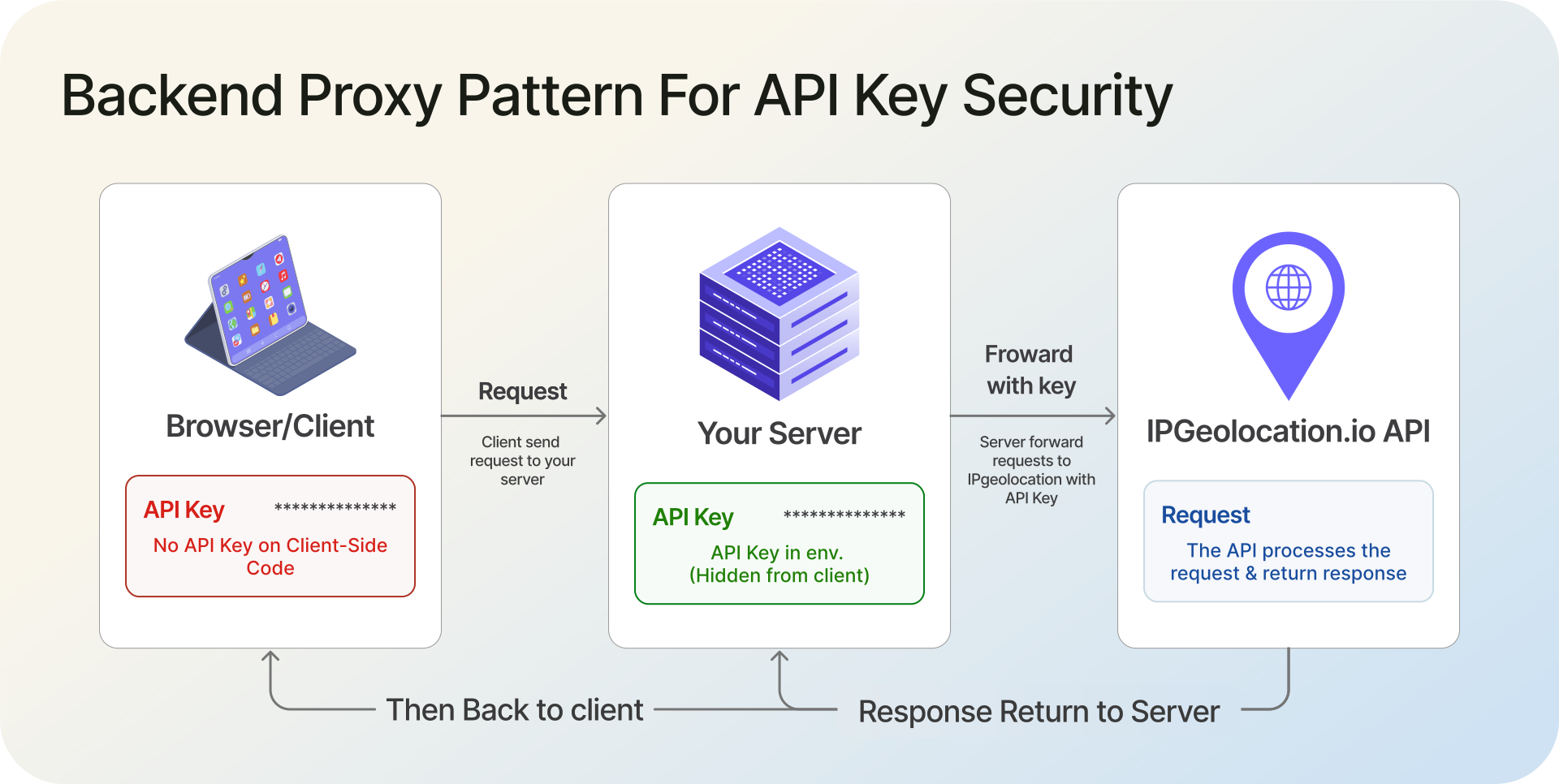
Even with environment variables, calling the API directly from frontend JavaScript means the key is visible in network requests. The fix: route geolocation requests through your own server.
require('dotenv').config();

const express = require('express');
const app = express();

const API_KEY = process.env.IPGEO_API_KEY;

if (!API_KEY) {
  console.error('IPGEO_API_KEY is not set. Exiting.');
  process.exit(1);
}

app.get('/api/geolocation', async (req, res) => {
  const ip = req.query.ip || req.ip;

  try {
    const response = await fetch(
      `https://api.ipgeolocation.io/v3/ipgeo?apiKey=${API_KEY}&ip=${ip}`
    );

    if (!response.ok) {
      return res.status(response.status).json({ error: 'Upstream API error' });
    }

    const data = await response.json();
    res.json(data);
  } catch (error) {
    console.error('Proxy request failed:', error.message);
    res.status(500).json({ error: 'Internal server error' });
  }
});

app.listen(3000, () => console.log('Proxy server running on port 3000'));
Your frontend calls /api/geolocation on your own domain. Your server forwards the request to IPGeolocation.io with the API key attached. This prevents exposing the API key in browser network requests or frontend source code.
For backend-only applications (server-side rendering, cron jobs, microservices), you do not need a proxy. Store the key in environment variables and call the API directly from your server code.
Set Up Request Origin (CORS) for Client-Side Use
If your application must call the IPGeolocation.io API directly from the browser, use Request Origin authentication instead of exposing the API key. This feature is available on all paid plans.
Here is how it works:
- Log in to your Account Dashboard
- Go to the API section and click Add more in the API Keys subsection.
- Choose Origin Keys and enter your domain (e.g.,
example.com) - Click Add Key.
Your added domain name will be visible under the Origin Key section. The following visual also shows the process to add an allowed origin.
Once configured, all requests from your domain and its subdomains are authenticated automatically. You do not need to pass the apiKey parameter at all. The API recognizes the request origin and serves the response.
This is the right approach for static sites, single-page applications, and any frontend that cannot route through a backend proxy. For more details, see the API authentication documentation.
Restrict and Rotate Your API Keys
Good API key management starts with separation. Use separate API keys for development, staging, and production. If a development key leaks, your production traffic is unaffected.
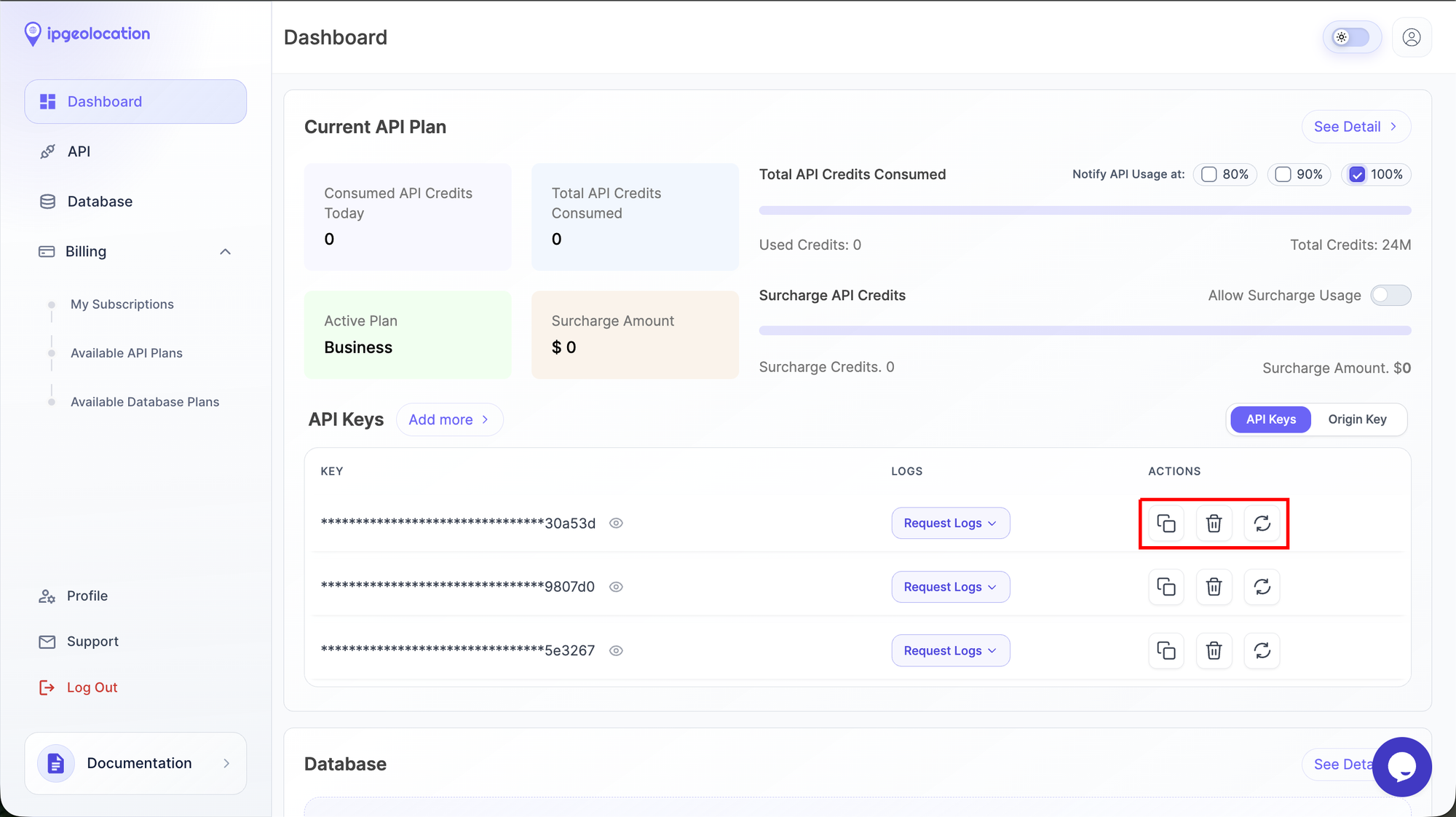
From the API Keys section in your Account Dashboard, you can:
- Generate additional API keys or request origins (within your plan limit, or at $2.5/month per extra key)
- Reset or rotate an existing key instantly
- Delete keys that are no longer in use
API key rotation should happen after any team member leaves or whenever you suspect a key may have been exposed. The old key stops working immediately after rotation, so update your environment variables after rotating.
Monitor Usage and Set Up Alerts
The API Keys section in your dashboard shows API usage as both a table and an interactive graph. You can view usage for the last week, last 4 weeks, or last year.
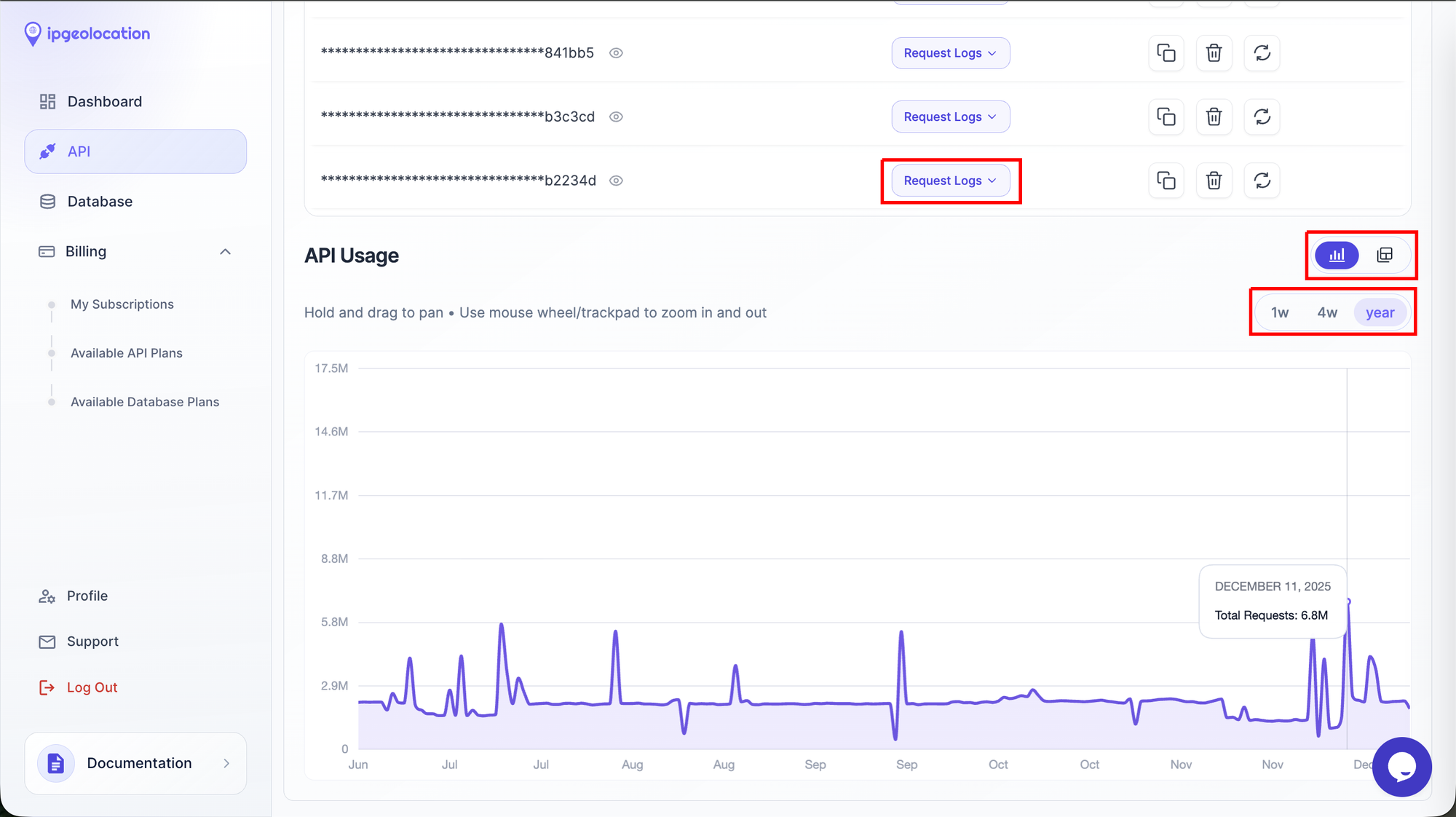
Watch for unexpected spikes in credit consumption. A sudden increase that does not match your deployment schedule usually means unauthorized usage.
If you notice suspicious activity, take these steps in order: request API logs to identify the source IPs making unauthorized calls, rotate the compromised key immediately from the dashboard, and update the new key in your environment variables and deployment configuration.
Pre-Production Security Checklist
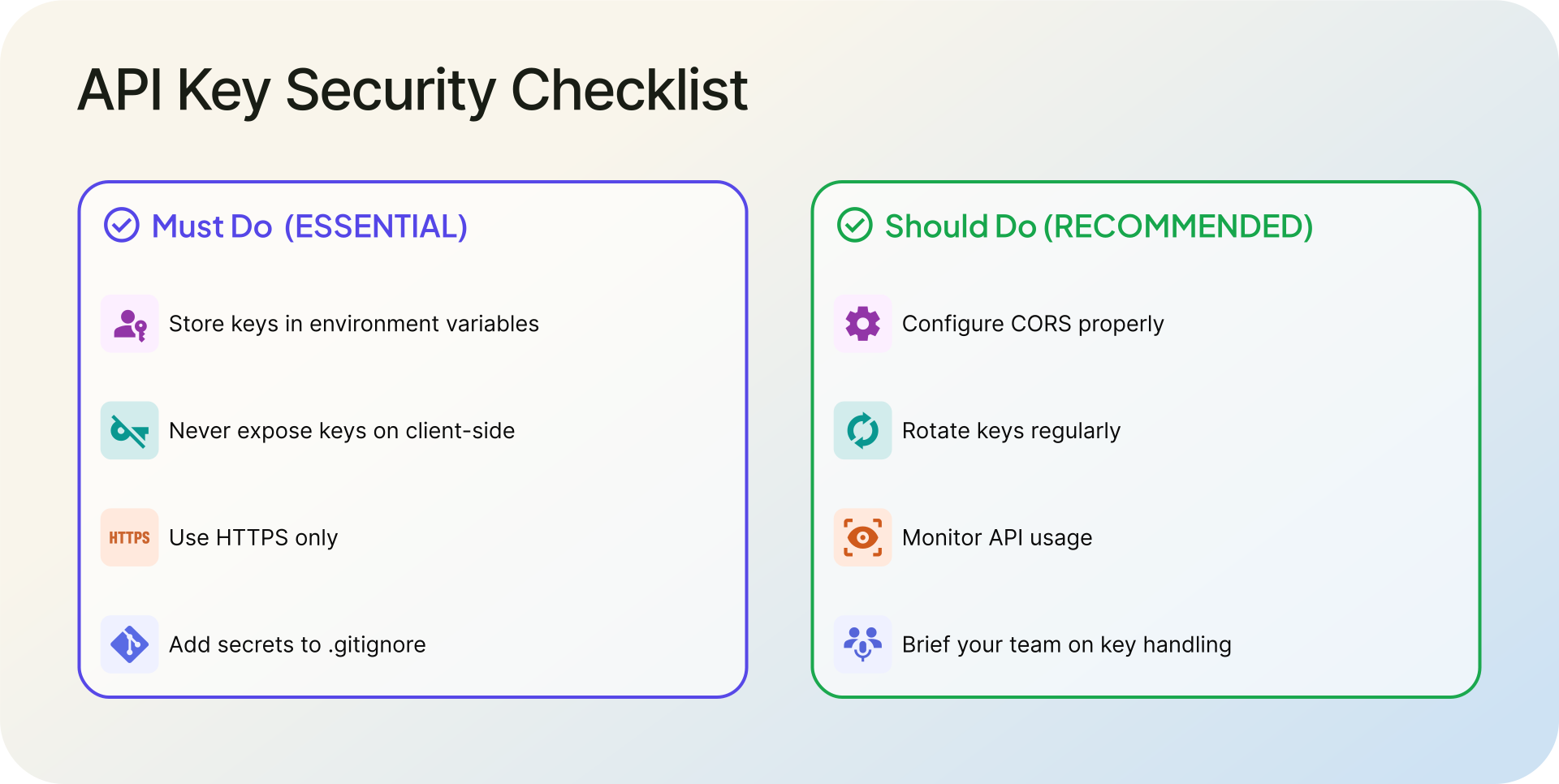
These API key best practices come down to a short checklist. Before deploying, run through each item:
✅ API key stored in environment variables, not in source code
✅ .env file added to .gitignore
✅ Frontend calls routed through a backend proxy or using Request Origin (CORS)
✅ Separate API keys for development and production environments
✅ Dashboard usage monitoring reviewed and baseline traffic noted
✅ HTTPS used for all API calls (IPGeolocation.io requires it)
✅ No API key visible in client-side JavaScript or HTML source
✅ Team members briefed on key rotation procedure
FAQ
The number of extra API keys and request origins depends on your subscribed plan:
| Plan | Extra Keys + Origins |
|---|---|
| Starter (150K requests) | 1 |
| Plus (500K requests) | 2 |
| Pro (1M requests) | 2 |
| Business (2M requests) | 3 |
| Premium (5M requests) | 3 |
You can add more than your plan limit at $2.5 per month per API key or request origin. See the API authentication documentation for full details.
Anyone with your key can make API requests on your account. You will consume credits for their requests. Log in to your dashboard, first request API logs to check which IPs were using the compromised key, rotate the key immediately, and update your environment variables.
No. Request Origin is specifically for browser-based requests where JavaScript calls the API directly. For backend applications, store the API key in environment variables and call the API from your server. CORS configuration is only necessary when the API call originates from client-side code.
No. Request Origin (CORS) authentication is available on all paid plans only. Free plan users should use a backend proxy to keep their API key secure. Check IPGeolocation.io pricing for plan details.
Use the API usage graph in your dashboard to watch for unusual traffic spikes. Paid accounts can also request API logs to identify the origin IPs making requests.
Rotate the exposed key immediately from the dashboard and replace it in your environment variables and deployment configuration. Public repositories are continuously scanned for exposed credentials.