
Maltego Transforms for IP Intelligence


Overview

IP addresses are often the first lead in an investigation — but Maltego's out-of-the-box data only gets you so far. The ipgeolocation.io transform set closes that gap by turning any IPv4 entity into a structured intelligence profile, directly inside your Maltego graph.

Five transforms are included, covering threat scoring, VPN and proxy detection, geographic enrichment, ASN resolution, company ownership attribution, and abuse contact lookup. No external tooling required — everything runs from within the Maltego UI and pipes results back into your graph as linked entities.

It includes a complete setup and workflow guide for security analysts, threat hunters, and OSINT investigators.

Transforms are powered by the ipgeolocation.io API v3.


What's Included

Five transforms are registered against IPv4 entities. Each maps to a specific stage of an investigation workflow.

TransformReturnsUse When
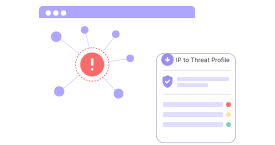
IP to Threat ProfileThreat score (0–100), VPN/proxy/Tor/bot flagsInitial triage
Enrich IPv4 AddressCountry, city, coordinates, ISP, org nameGeographic context
IP to Company IntelCompany name, domain, ASN, route, anycast statusOwnership attribution
IP to ASNASN number, org, RIR details, route countsInfrastructure grouping
IP to Abuse ContactAbuse email, phone, org, registered addressIncident reporting

Installation

Install the full transform set in one step using the seed URL below.

Step 1 — Open the Maltego Graph UI

Launch Maltego and navigate to the Transforms tab in the top menu bar.

Step 2 — Open the Maltego Data Hub

Click the Maltego Data Hub icon to open the transform marketplace panel.

Step 3 — Add an internal hub item

Scroll to the Internal Hub Items section and click the + icon.

 Add IPGeolocation.io to Internal Hub

Step 4 — Enter the seed URL

Paste the following URL into the Seed URL field:

https://ptds.maltego.com/runner/showseed/zRM8hg0zBOj1Xq2kjQZvRA7P
 Enter the seed URL

Step 5 — Install and confirm

Click Install and follow the prompts. All five transforms will be registered and available on IPv4 entities immediately.

Click Install
Finish Installation

Step 6 — Open New Graph

Click New + under the Investigate tab, then drag an IPv4 Address entity onto the canvas and right-click to view the available transforms.

Open New Graph and Add IPv4 Entity

Step 7 — Run the transforms

Run the transform with the API key and watch the results appear in the Maltego graph.

Add API Key in Maltego Transform

Transforms Availability across our Plans

We offer two API plans: Developer, Paid. The transform availability depends on the plan you are subscribed to, as shown in the following table.

TransformDeveloper (Free)Paid
IP to Threat ProfileCrossTick
Enrich IPv4 AddressTickTick
IP to Company IntelTickTick
IP to ASNCrossTick
IP to Abuse ContactCrossTick

If you attempt to use a transform that is not available in your plan, the transform will fail silently and no results will be returned in the Maltego graph for that entity. You can always upgrade or switch plans from the ipgeolocation.io dashboard.

Transform unavailability

Available Transforms (Detailed Reference)


1. IP to Threat Profile

The threat profile transform is your first line of defense during IP triage. It returns a composite risk score plus specific indicators about how the IP is being used.

Returned Data:

  • Threat score – A 0–100 integer where higher values indicate higher risk. Scores above 70 typically warrant immediate investigation.
  • VPN detection – Provider name and confidence level (low/medium/high)
  • Proxy detection – Differentiates standard proxies from residential proxy networks
  • Tor exit node – Boolean flag indicating Tor network exit points
  • Relay detection – Identifies IPs acting as relays for anonymizing services
  • Bot activity – Flag for IPs associated with known botnet traffic
  • Spam activity – Flag for IPs reported in spam campaigns
  • Known attacker – Flag for IPs with confirmed attack history
  • Cloud/hosting provider – Identifies whether the IP belongs to a cloud or hosting infrastructure
IP to Threat Profile

When to use: Any time you add an unfamiliar IP to your graph. Run this first — it tells you whether to dig deeper or move on.


2. Enrich IPv4 Address

This transform adds geographic and network context that Maltego doesn't provide natively.

Returned Data:

  • Country and continent – Full names and ISO codes
  • City and coordinates – City name with latitude/longitude
  • ASN details – ASN number and associated organization
  • ISP/organization – The internet service provider or organization operating the IP
Enrich IPv4 Address

When to use: After threat assessment, when you need to understand where traffic originates and who provides the connectivity.


3. IP to Company Intel

Company attribution helps you understand who actually controls an IP address — not just who hosts it.

Returned Data:

  • Company name and type – Organization name with classification (ISP, hosting, business, etc.)
  • Domain – Associated domain when available
  • ASN – Full ASN record
  • Network route – CIDR block containing the IP
  • Anycast status – Whether the IP uses anycast routing
IP to Company Intel

When to use: When you need to identify the operating entity behind an IP, especially useful for infrastructure mapping and understanding whether an IP belongs to a target organization or a third-party service.


4. IP to ASN

Autonomous System data provides network-level context that's essential for infrastructure analysis.

Returned Data:

  • ASN number and name – Standard ASN identifier and registered name
  • Organization – The organization that owns the ASN
  • Country – Registered country of the ASN
  • RIR details – Regional Internet Registry managing the allocation
  • IPv4 and IPv6 route counts – Number of routes announced
IP to ASN

When to use: When grouping IPs by infrastructure provider or analyzing network topology. One ASN may host thousands of IPs — identifying the ASN early helps you understand the scale of what you're looking at.


5. IP to Abuse Contact

When you need to report malicious activity, this transform gives you the exact contacts to reach.

Returned Data:

  • Abuse organization – The entity responsible for abuse handling
  • Email addresses – Direct abuse contact emails
  • Phone numbers – Contact numbers when available
  • Registered address – Physical address of the responsible organization
  • Network route – The IP block the address belongs to (useful for reporting context)
IP to Abuse Contact

When to use: At the conclusion of an investigation that requires reporting — DDoS sources, phishing hosts, compromised infrastructure, or any confirmed malicious activity.


Investigation Workflow Examples

These workflows show how to chain transforms together for real investigative scenarios.


1. Suspicious Connection Triage

Scenario: Your SIEM flags an outbound connection from an internal host to an external IP. You need to assess risk quickly.

  1. Add the IP to your Maltego graph
  2. Run IP to Threat Profile – Check the threat score and flags
    • If threat score > 70 → proceed to enrichment
    • If VPN or Tor exit node flagged → escalate based on policy
    • If cloud/hosting provider → consider legitimate CDN traffic
  3. Run Enrich IPv4 Address – Add geographic and ISP context
  4. Run IP to Company Intel – Identify who operates the IP
  5. Document findings – Use the data to inform your response

2. Infrastructure Discovery

Scenario: You have one suspicious IP and want to identify related infrastructure.

  1. Run IP to ASN – Identify the autonomous system
  2. Copy the ASN – Use it as a new entity
  3. Enrich the ASN – Run ASN transforms (available separately in the ipgeolocation.io suite) to find other IPs in the same network
  4. Run IP to Company Intel – Identify the organization controlling the ASN
  5. Pivot to domains – Use company information to search for associated domains

3. Incident Reporting

Scenario: You've confirmed an IP is hosting phishing content and need to file a takedown request.

  1. Run IP to Abuse Contact – Retrieve the abuse reporting email
  2. Export contact data – Document the abuse organization and email
  3. Run Enrich IPv4 Address – Include geographic and network context in your report
  4. Create report – Use the collected data to submit a detailed abuse report with all required fields

Troubleshooting


1. Transform returns no results

This is the most common issue and has a few distinct causes.

Plan restriction — Three transforms (IP to Threat Profile, IP to ASN, IP to Abuse Contact) are unavailable on the Developer (free) plan. When called, they fail silently — no error is shown and no entities are added to the graph. Check the plan comparison table and verify your subscription in the dashboard.

Invalid or missing API key — If your API key is not configured correctly in Maltego's transform settings, all transforms will return empty results with 401 status code, you can see in the output window of the transform.

Rate limit exceeded — Developer plan keys are subject to strict rate limits. If you've hit the limit, transforms will return no data until the quota resets. Upgrade to a paid plan or wait for the reset window. See Pricing for quota details.

Private or reserved IP — Transforms will return no results for private IP ranges ( 10.x.x.x , 192.168.x.x , 172.16.x.x ) and other reserved addresses. These are not routable on the public internet and cannot be enriched.


2. Transform runs but data is incomplete

Some fields may return empty even on a successful call. This is expected in certain cases:

  • Abuse phone numbers are not always registered — many organizations only provide an email contact.
  • City-level geolocation can be unavailable for IPs allocated to large ISPs or anycast networks.
  • Company domain is omitted when the IP is assigned to an ISP rather than an end-organization.
  • VPN provider name is only returned when the provider is in the detection database — the VPN flag may still be set without a name.

Incomplete results are not a bug. Treat missing fields as "not available" rather than "not applicable."


3. Transform throws an error in the Maltego UI

If you see an explicit error (red icon or transform failure notification), check the following:

ErrorLikely CauseFix
Connection refused Maltego cannot reach the transform serverCheck your network and firewall. The transform server at ptds.maltego.com must be reachable on port 443.
Authentication failed API key rejectedVerify the key in Transform Settings. Ensure there are no leading/trailing spaces.
Transform not found Installation incompleteRe-run the seed URL installation and confirm all five transforms appear under Internal Hub Items.
Rate limit exceeded Plan restrictionUpgrade to a paid plan or wait for the reset window. See Pricing for quota details.

4. Transforms not appearing on IPv4 entities

If you right-click an IPv4 entity and the ipgeolocation.io transforms are not listed, the installation did not complete successfully.

  1. Go to Transforms → Maltego Data Hub → Internal Hub Items
  2. Confirm the seed URL is listed and shows a green status
  3. If missing, re-enter the seed URL and reinstall
  4. Restart Maltego after installation to ensure transforms are registered correctly

Frequently Asked Questions

No. All five transforms are registered against IPv4 entities only. IPv6 support is planned for a future release.
Yes. Select multiple IPv4 entities in your graph, right-click, and run the transform — Maltego will execute it against each selected entity. Be mindful of your plan's rate limits when running bulk enrichment; hitting the quota mid-run will cause remaining transforms to return empty results silently.
A score of 0 means no threat signals were detected for that IP at the time of the query. It does not mean the IP is definitively safe — it means it has no current reputation data. Treat low-score IPs with unknown ISPs or unusual geographic locations with appropriate caution regardless.
Maltego does not cache transform results by default. Each run makes a live API call. If you need point-in-time snapshots, export your graph data after running transforms.
Threat intelligence data is time-sensitive. An IP that was flagged last week may have rotated or been cleaned up since. Conversely, a newly malicious IP may not yet have reputation signals. Use the threat score as one signal among several — not as the sole indicator.
Open Maltego Data Hub → Internal Hub Items, locate the ipgeolocation.io seed entry, and click Refresh if available. If no update prompt appears, uninstall and reinstall using the same seed URL.
For API or transform issues, contact support@ipgeolocation.io. Include your API key (partially redacted), the transform name, and the IP you were querying if applicable.

Subscribe to Our Newsletter

Get the latest in geolocation tech, straight to your inbox.