



Adding geolocation to your Shopify store means detecting where each visitor is and sending them to the right market, store, or language. Shopify has a basic built-in redirect for this, but a geolocation app gives you the control most international stores need. This guide explains the difference, then sets up the app.
TL;DR
- Shopify gives you two ways to route visitors by location: its built-in country/region redirect setting (still live, and not the same as the standalone Geolocation app Shopify retired in 2025), or a geolocation app.
- The built-in setting is a bare baseline. It force-redirects with no consent step, works inside a single store, skips EU country-code domains, and gives you no branded popup, translations, city-level targeting, or analytics.
- A geolocation app is what an international store actually needs: a consent popup shoppers can accept, routing across multiple stores and domains, EU-friendly recommendations, translated and branded prompts, and reporting.
- The IPGeolocation Shopify app does all of that for free: country detection at 99% accuracy, a customizable consent popup, up to 3 connected stores, and unlimited translations, with 1,000 geolocation lookups per day included.
- Setup takes a few minutes. The one step people miss is enabling the app embeds in the theme editor.
Most international Shopify stores lose sales the same way: a shopper in Germany lands on the US storefront, sees prices in USD, and leaves. Geolocation fixes that by reading the visitor's IP, working out their country, and sending them to the storefront built for them. This guide shows what Shopify's built-in redirect does, where it falls short, and how to set up the app that fills the gaps.
Shopify's built-in redirect vs a geolocation app
First, clear up a common mix-up. Shopify retired its standalone Geolocation app in 2025, but it kept a built-in setting called automatic country/region redirection (Online Store > Preferences), and that setting is still live. So the real choice today is between Shopify's built-in redirect and a dedicated geolocation app, not between an app and nothing.
The built-in setting covers the basics: it detects a visitor's location and sends them to the matching market. But it is deliberately minimal, and the gaps show up fast on a real international store. It force-redirects rather than asking, so shoppers get moved with no say. It only acts on the current visit, with no returning-visitor logic to remember the store a shopper picked last time, so a repeat customer can be bounced around again. It works inside a single store, so it cannot route between separate storefronts on different domains. And it gives you no control over the popup wording, no translations, no city-level targeting, and no reporting.
It also carries an SEO cost that is easy to miss. Search crawlers mostly crawl from US IP addresses, and Google warns that location-based auto-redirects can stop it from crawling and indexing your other-country pages, so your non-US storefronts may never get indexed or rank. Shopify's own documentation adds that shared-domain markets are not indexed by search engines, and that EU shoppers on a country-code domain are not auto-redirected at all, which is why Shopify itself points those merchants to a consent-based third-party app.
A geolocation app closes those gaps. The IPGeolocation app shows a consent popup the shopper can accept or dismiss, then remembers that choice and re-applies it on return visits so repeat customers land in the right place automatically. It routes across up to 3 connected stores and domains, handles EU shoppers with consent-based recommendations, and lets you brand the popup, translate it per market, and personalize it with the visitor's city and currency. Because it uses consent-based client-side redirects and leaves your hreflang tags and sitemap intact, search engines can still crawl and index every localized storefront, not just the US one. UTM tags survive the redirect, and a dashboard tracks lookups and successful redirects. Once you sell across more than one market or domain, that control is the difference between routing that converts and a forced redirect that quietly loses sales and rankings.
The rest of this guide sets up the free IPGeolocation Shopify app, which was built to fill exactly those gaps.
How geolocation routing works on Shopify
A Shopify geolocation app reads the visitor's IP address on page load, resolves it to a country (and often a city), and compares that to your Shopify Markets setup. That is how you redirect Shopify customers by country to the storefront built for them, without making them pick manually. If the visitor is on the wrong storefront, the app either redirects them or shows a popup recommending the right one.
The detection accuracy matters here. The IPGeolocation app runs on IPGeolocation.io's IP data, which resolves country at 99% accuracy and city at 85%+. It loads asynchronously, so it does not block your page from rendering, and it uses client-side redirects that leave your hreflang tags and sitemap untouched, so search engines still crawl every localized version. You can see the rest of the company's IP geolocation integrations for non-Shopify stacks.
How to add geolocation with the free IPGeolocation app
The full reference lives in the Shopify integration documentation. This is the short version that gets you live.
1. Install the app and turn on the app embeds
Install IPGeolocation from the Shopify App Store and approve the permissions, then open it from your admin under Apps > IPGeolocation. The plan is free and includes 1,000 geolocation lookups per day, with no API key to manage.
The step most people miss: the popup and selector are controlled in the theme editor, not the app dashboard. Go to Online Store > Themes, click Customize, open App embeds in the left sidebar, toggle on Geo Redirect Popup and Geo Market Selector, and save. Skip this and nothing appears on your storefront no matter what the dashboard says.
2. Set your first redirect rule
Open the Rules page in the app. Pick who sees the popup (everyone, only specific countries, or everyone except your home market), then choose first-visit behavior. "Show only on the wrong storefront" is the low-friction default: a French shopper already on your French store is never interrupted, while a French shopper on your US store gets the nudge. You can also exclude pages from the popup using path patterns, for example /checkout for an exact page, /collections/* for one level, or /blogs/** for everything nested under blogs.
Route across multiple stores and markets
If you run one store with several Shopify Markets, the app syncs those markets automatically and routes between them. If a market is missing after a change, the Sync button refreshes the list.
If you run separate stores on different domains, say my-brand.com and my-brand.co.uk, the app connects up to 3 of them for free. Generate a Connection ID in one store, share it with the other store's admin, and they paste it into their Connect a Store field. When two stores both claim the same market, the app asks you to pick which one owns it. This cross-domain, multi-store routing is the main thing Shopify's native redirect cannot do.
Translate and customize the popup
The popup speaks to shoppers, so it should speak their language. In the Translations tab you can create messages matched by browser language alone, or by country and language together, which lets you show different text to French speakers in France versus French speakers in Canada. One caution: switching your matching strategy after you have built translations deletes the existing ones, so choose the approach before you start.
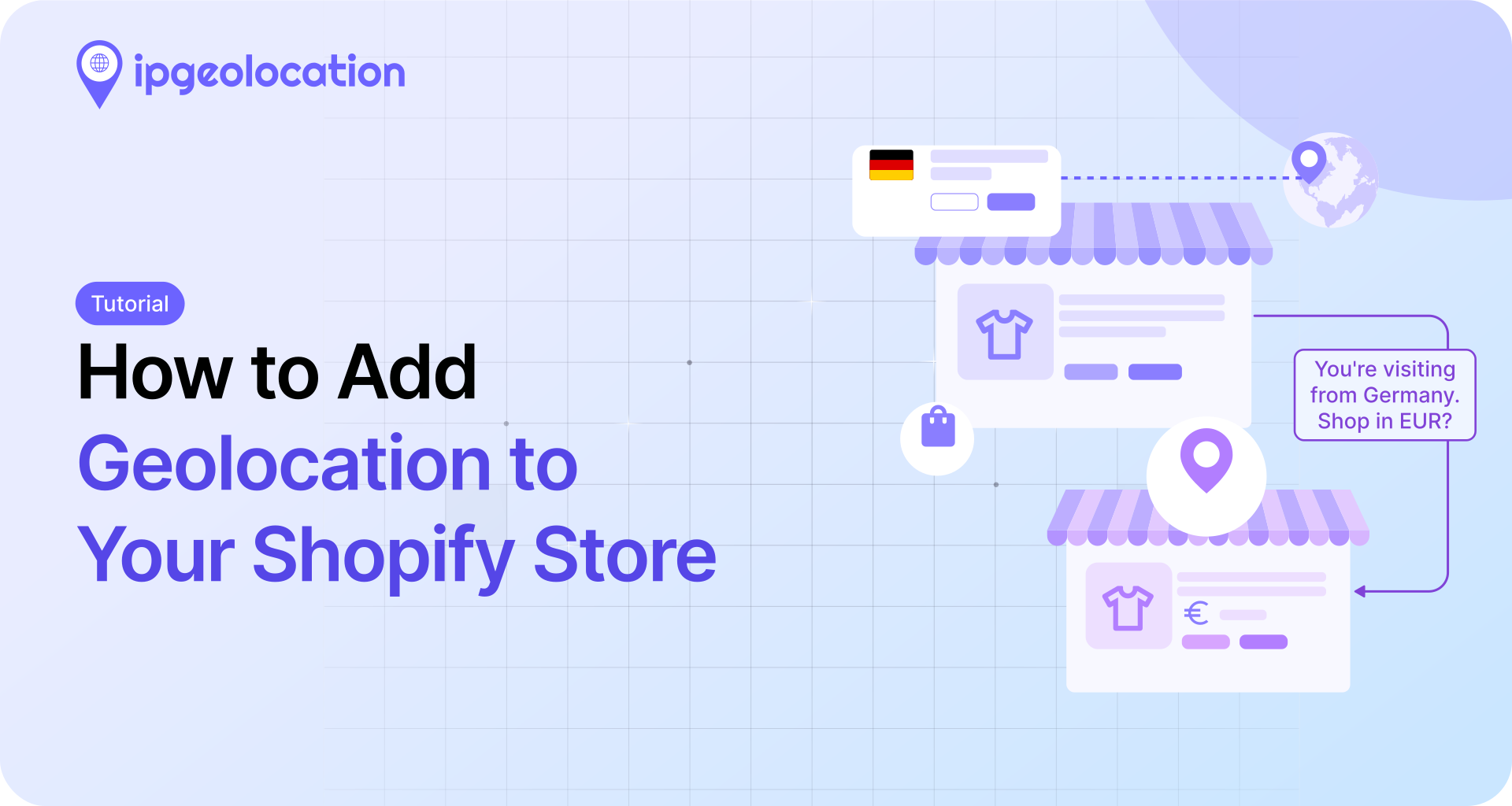
For the wording itself, the popup supports dynamic variables, so the message fills in each visitor's details: {country}, {city}, {currency_code}, and {currency_symbol}. A prompt like "Hi! You're visiting from {city}. Shop in {currency_code}?" renders as "Hi! You're visiting from Berlin. Shop in EUR?" You can style colors, corners, and overlay opacity to match your theme, and add the manual market selector (also called a country selector) as an embedded element (using a CSS selector like .header__icons) or as a floating modal button.
Test it, and turn off Shopify's native redirect
Test in an incognito window. If you already accepted the popup once, your browser remembers the choice and you count as a returning visitor, so a fresh session is the only honest test. If the popup still does not show, recheck that the app embed is on and that you have not hidden the popup for your own country.
The most common failure is a conflict: Shopify's native country/region redirect fighting the app's. If you are using the app, go to Online Store > Preferences and turn the native automatic redirection off. Running both sends visitors through two redirect systems at once, which is exactly the broken experience you installed an app to avoid.
Frequently asked questions
Install a geolocation app and let it handle detection and routing. Shopify's built-in redirect is limited: it force-redirects without consent, forgets returning visitors, works on one store only, and can keep search engines from indexing your non-US markets. So install the IPGeolocation app, turn on its theme app embeds, and set your redirect rules.
Shopify Markets handles localized pricing and currency, but it does not route visitors on its own. The built-in redirect is basic and force-redirects within a single store. A geolocation app adds a consent popup, routing across multiple stores and domains, EU-friendly recommendations, translated popups, and analytics, which is what most international stores actually need.
Shopify removed the standalone Geolocation app on March 24, 2025, with installs stopping February 1, 2025. Its built-in country/region redirect setting stayed live, but that only covers basic routing. For the consent popup, multi-store routing, translations, and EU handling the old app's users expect, Shopify directs merchants to a third-party geolocation app.
The IPGeolocation app resolves country at 99% accuracy and city at 85%+, using IP data that is updated daily. Accuracy is highest at the country level, which is what storefront routing depends on. A shopper can always correct the suggestion with the manual market selector.
Done right, no. The IPGeolocation app uses consent-based client-side redirects and does not alter your hreflang tags or sitemap, so search engines crawl and index each localized storefront. The risk comes from forced location-based auto-redirects: because crawlers mostly work from US IP addresses, those can leave your non-US markets uncrawled and unindexed.
Yes. The app is free with no subscription tier. You get country detection, the consent popup, up to 3 connected stores, and unlimited translations at no cost. The included allowance covers 1,000 geolocation lookups per day, and high-traffic stores can scale through a paid API plan if they exceed it.
What to do next
Install the free IPGeolocation app, enable the two app embeds in your theme, set one redirect rule, and test in an incognito window. You will have country-based routing with a branded consent popup live in a few minutes, with multi-store and translations ready when you need them. For how visitor location data is handled, see the GDPR compliance page.