

IPGeolocation.io Workato Integration
Overview
The IPGeolocation.io connector for Workato brings the full IPGeolocation.io v3 API into Workato recipes as 12 ready-made actions. There is no need to build HTTP requests, parse raw JSON, or manage authentication headers by hand. You add the connector to a recipe, connect your API key once, and every action is available across your workspace from that point on.
With this integration, every recipe you build can pull real-time intelligence on any IP address, including:
- Geolocation data such as country, region, city, ZIP code, and coordinates
- Security and threat intelligence, including proxy, VPN, Tor, and cloud provider detection with a threat score
- Network ownership and ASN details
- Abuse contact information for the organization behind an IP
- Timezone data and time conversion across time zones, coordinates, IATA, ICAO, and UN/LOCODE inputs
- Astronomy data, including sunrise, sunset, and moon phase, for a single day or a date range
- User agent parsing for browser, operating system, and device detection
This data feeds directly into fraud checks, lead enrichment, content personalization, compliance workflows, and security alerting, without writing a single line of custom integration code.
The connector groups its 12 actions into 6 categories:
| Category | Actions |
|---|---|
| Geolocation | Get IP Geolocation, Get Bulk IP Geolocation |
| IP Security | Get IP Security, Get Bulk IP Security |
| Network Intelligence | Lookup ASN Information, Find IP Abuse Contact |
| Time Services | Find Timezone Information, Convert Timezone |
| Astronomy | Lookup Astronomy Data, Lookup Astronomy Timeseries |
| User Agent Parsing | Parse User Agent, Parse Bulk User Agents |
Connect IPGeolocation.io to Workato
You need a valid IPGeolocation.io API key to use this connector. Follow these steps to set up the connection.
1. Create or log in to your IPGeolocation.io account
- Go to IPGeolocation.io.
- New to IPGeolocation.io? Click Sign Up and complete the registration.
- Already have an account? Click Sign in and enter your credentials.
2. Get your API key
- Once logged in, open your dashboard.
- Copy your API Key. You will paste this into Workato in a later step.
3. Open Workato and start a recipe
- Log in to your Workato workspace.
- Create a new recipe, or open an existing one where you want to add IP intelligence.
- Add a new action step and search for IPGeolocation.io in the app picker.
- Follow the prompts to install
IPGeolocation.iocommunity connector. - Choose the action you need, for example Get IP Geolocation or Get IP Security.
4. Add a new connection
- On the connection screen, click to add a new connection.
- Give the connection a name so it is easy to identify if you connect multiple API keys later.
- Paste the API Key you copied from your IPGeolocation.io dashboard into the required field.
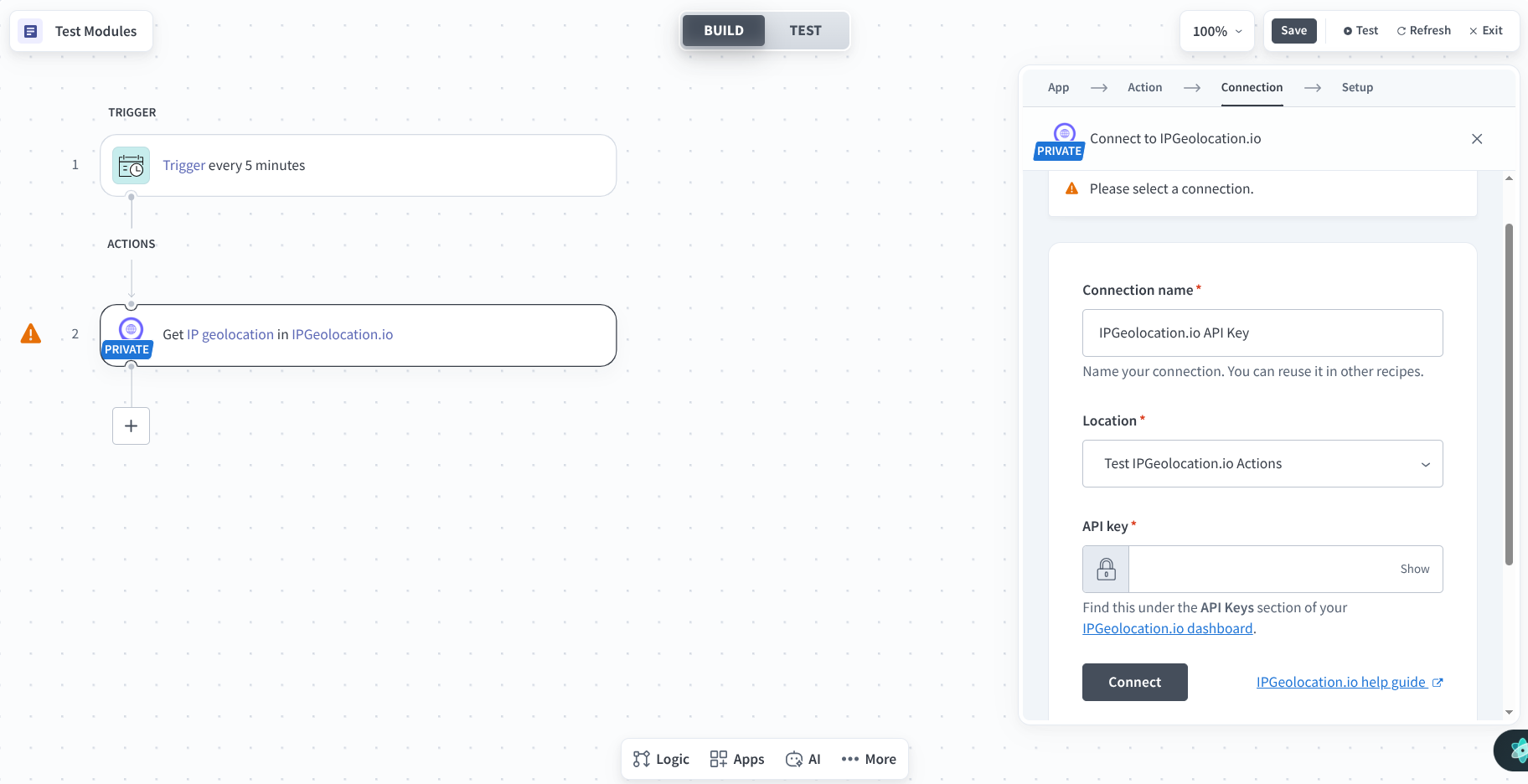
5. Confirm the connection
- Click to save and connect.
- Workato validates the API key against IPGeolocation.io and confirms the connection is active.
- Once connected, the connection is saved to your workspace and ready to use.
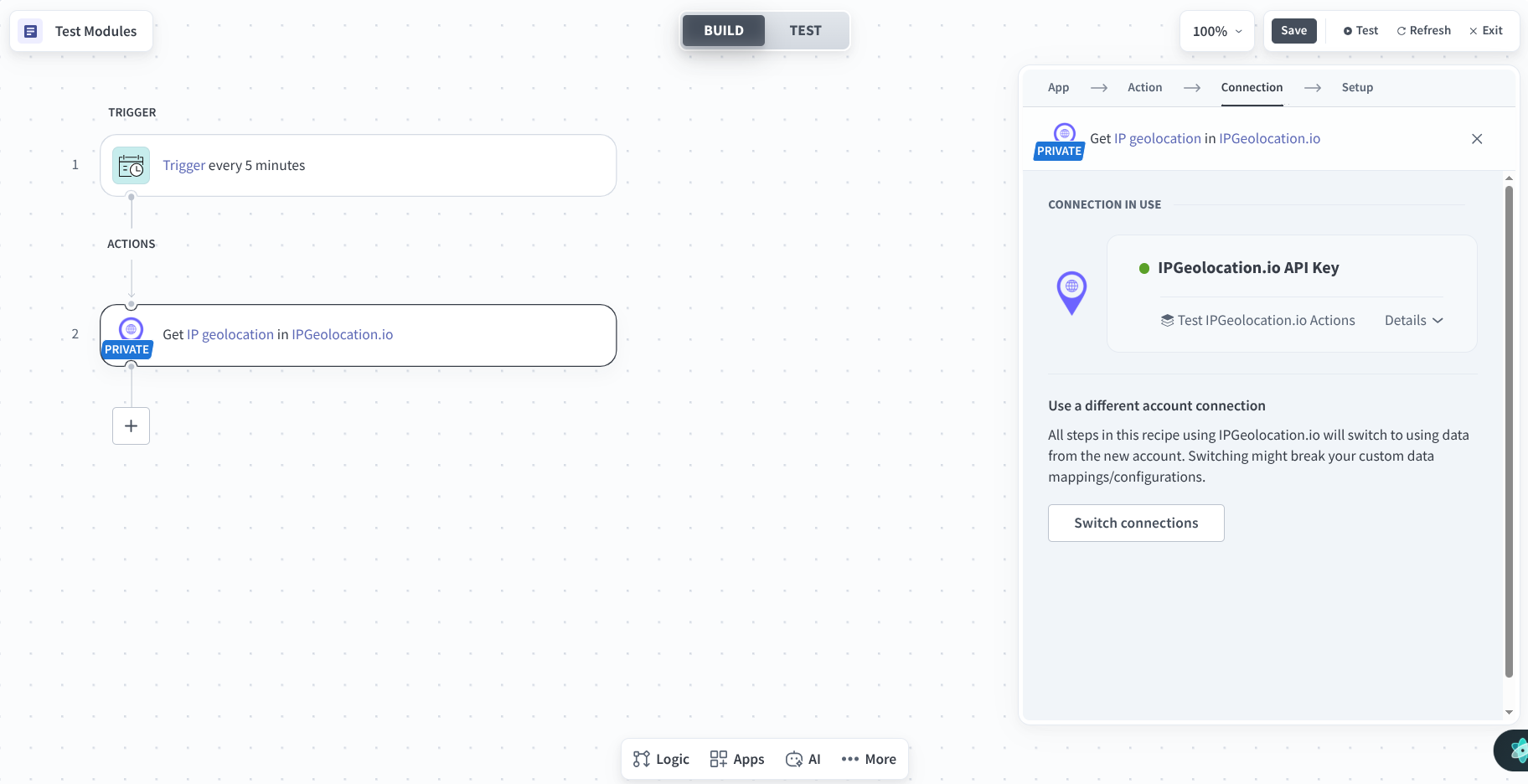
6. Reuse the connection across recipes
- Any action step that uses IPGeolocation.io in this workspace can reuse the same connection.
- Configure the action inputs, such as an IP address, IP array, or user agent string, using data pills from earlier steps or static values.
- Test the step and continue building your recipe.
Action Availability by Plan
IPGeolocation.io offers a free Developer plan and paid plans. Your API key determines which actions you can use in Workato.
| Action | Free | Paid |
|---|---|---|
| Get IP Geolocation |  | |
| Get Bulk IP Geolocation |  | |
| Get IP Security | | |
| Get Bulk IP Security | | |
| Lookup ASN Information | | |
| Find IP Abuse Contact | | |
| Find Timezone Information | | |
| Convert Timezone | | |
| Lookup Astronomy Data | | |
| Lookup Astronomy Timeseries | | |
| Parse User Agent | | |
| Parse Bulk User Agents | | |
See the IPGeolocation.io pricing page for plan details and information about upgrading your API key.
Actions Reference
Each Workato action connects to an IPGeolocation.io API endpoint. The sections below describe the inputs and outputs available in each action. For the complete response schema, see the linked API documentation.
1. Geolocation
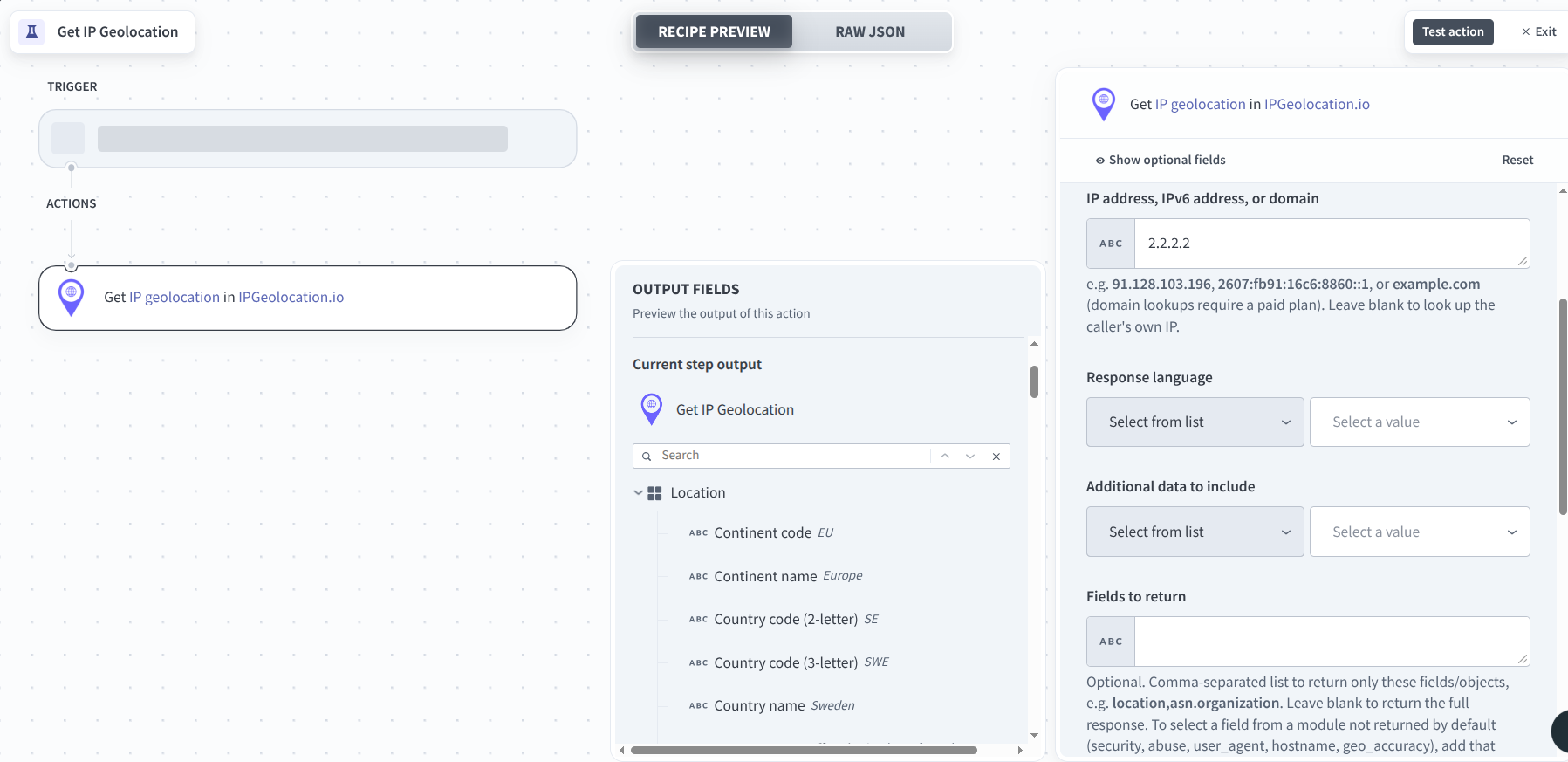
I. Get IP Geolocation
Retrieves geolocation data for a single IPv4 or IPv6 address.
Inputs
- IP: IPv4 or IPv6 address. Paid plans also support domain names.
- Include: Adds optional data modules to the response. See the IP Geolocation API Include options.
- Fields: Returns only the fields you specify.
- Excludes: Removes fields or objects from the response.
- Language: Returns location text in a supported language.
Outputs
Returns location, country metadata, currency, ASN, and time zone data, along with additional data available to the request. See the IP Geolocation response fields.
II. Get Bulk IP Geolocation
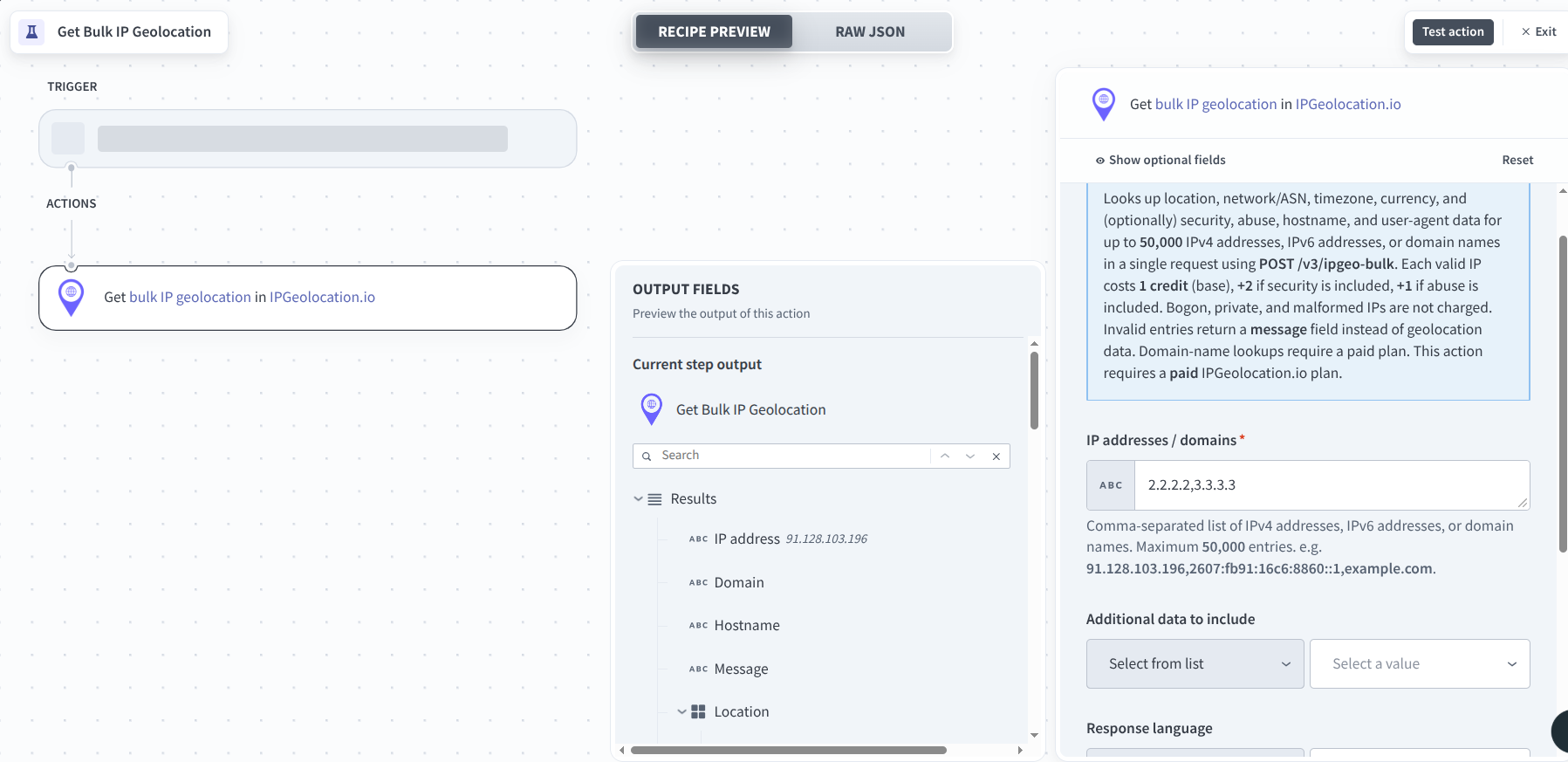
Retrieves geolocation data for up to 50,000 IP addresses in a single request.
Inputs
- IP Addresses: Array of IPv4 or IPv6 addresses. Paid plans also support domain names.
- Include: Adds optional data modules to the response.
- Fields: Returns only the fields you specify.
- Excludes: Removes fields or objects from the response.
Outputs
Returns a collection of geolocation objects, one for each submitted address. See the IP Geolocation API response reference.
2. IP Security
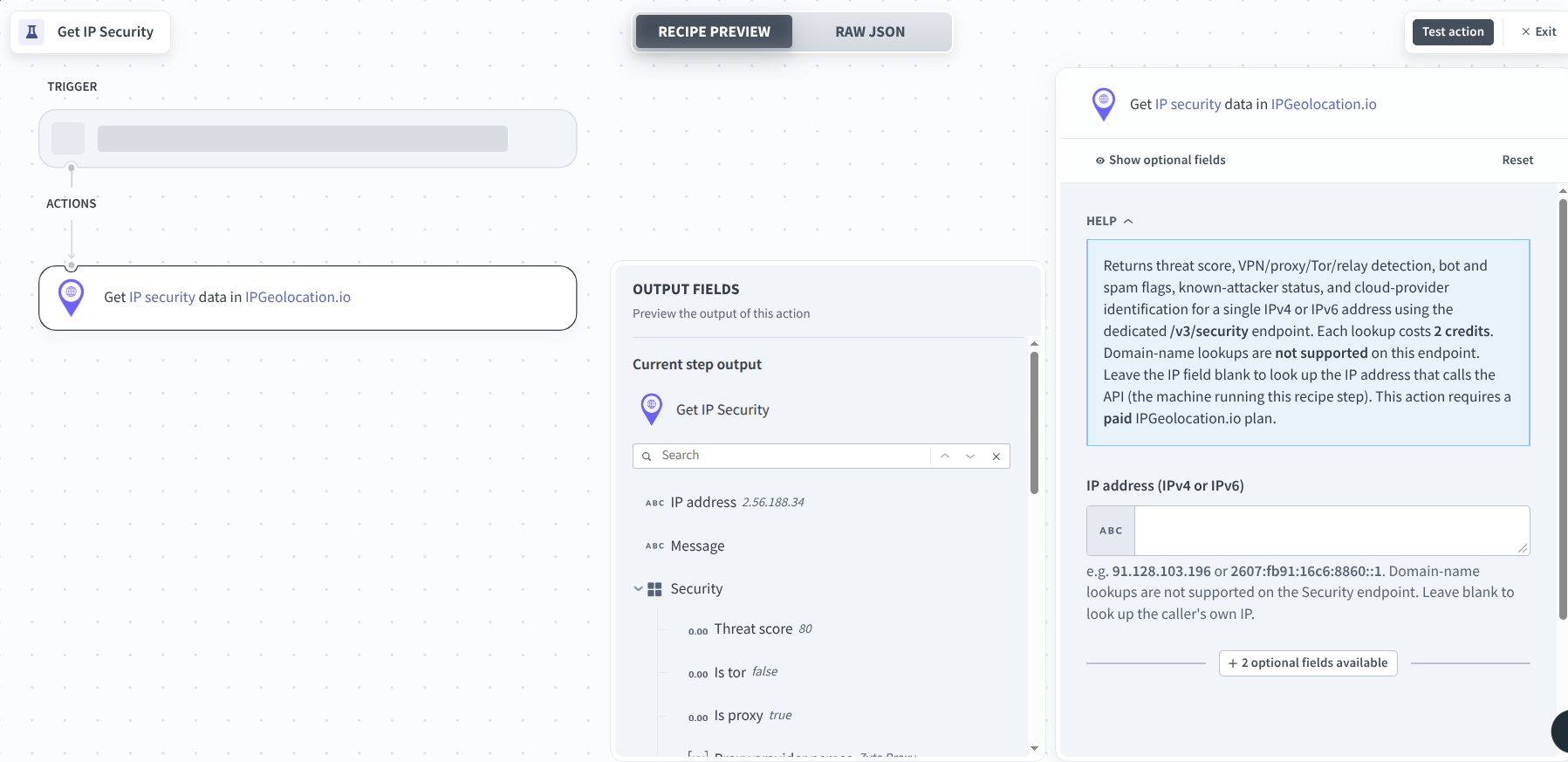
I. Get IP Security
Returns security and threat information for a single IP address, including proxy, VPN, Tor, relay, cloud provider, and threat score data.
Inputs
- IP: IPv4 or IPv6 address.
- Fields: Returns only the security fields you specify.
- Excludes: Removes security fields or objects from the response.
Outputs
Returns security data such as security.is_proxy, security.is_vpn, security.is_relay, security.is_tor, security.threat_score, and security.is_cloud_provider. See the IP Security response fields.
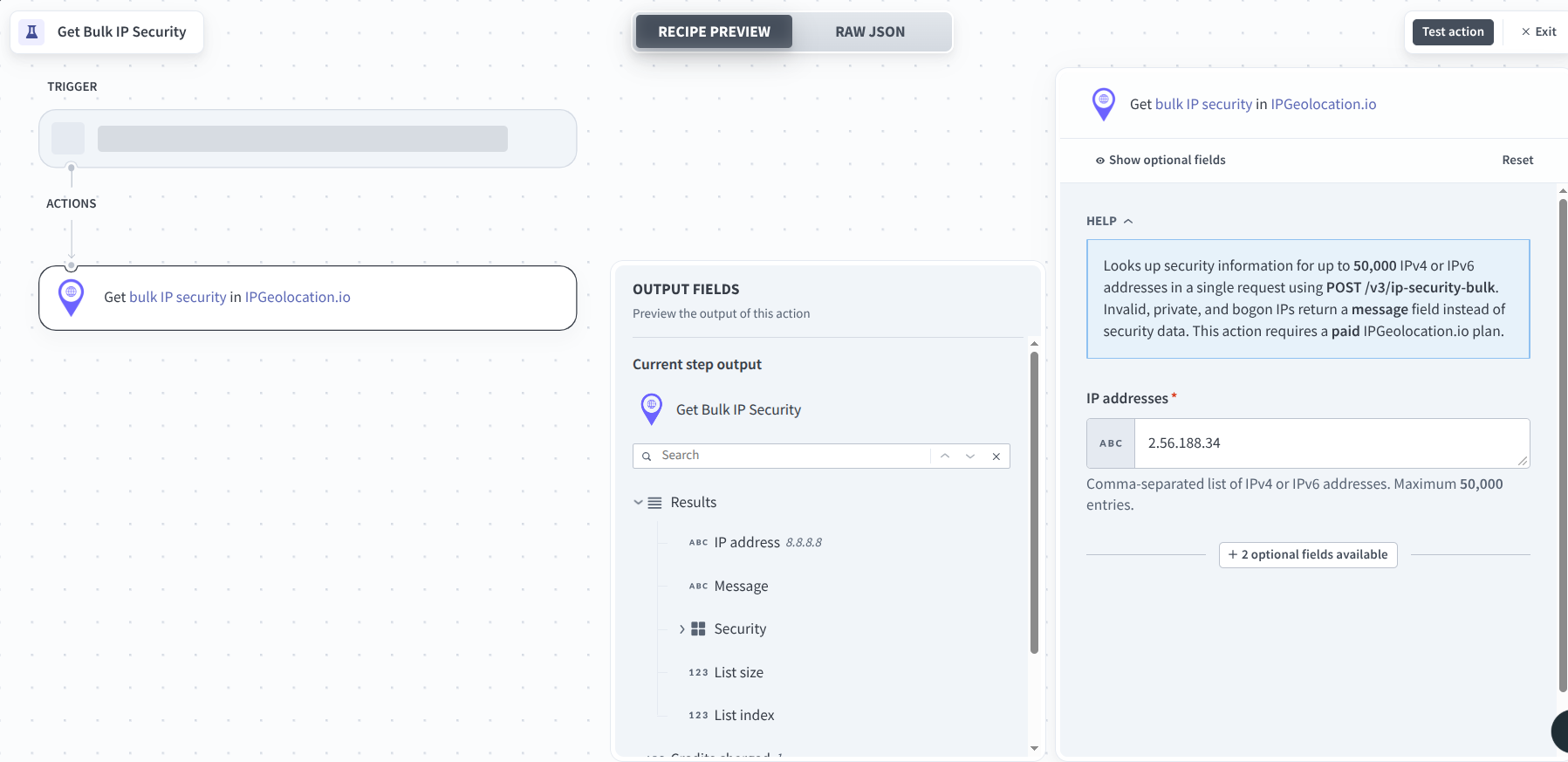
II. Get Bulk IP Security
Checks multiple IP addresses for security and threat information in a single request.
Inputs
- IP Addresses: Array of IPv4 or IPv6 addresses.
- Fields: Returns only the security fields you specify.
- Excludes: Removes security fields or objects from the response.
Outputs
Returns a collection of security objects. See the IP Security API response fields.
3. Network Intelligence
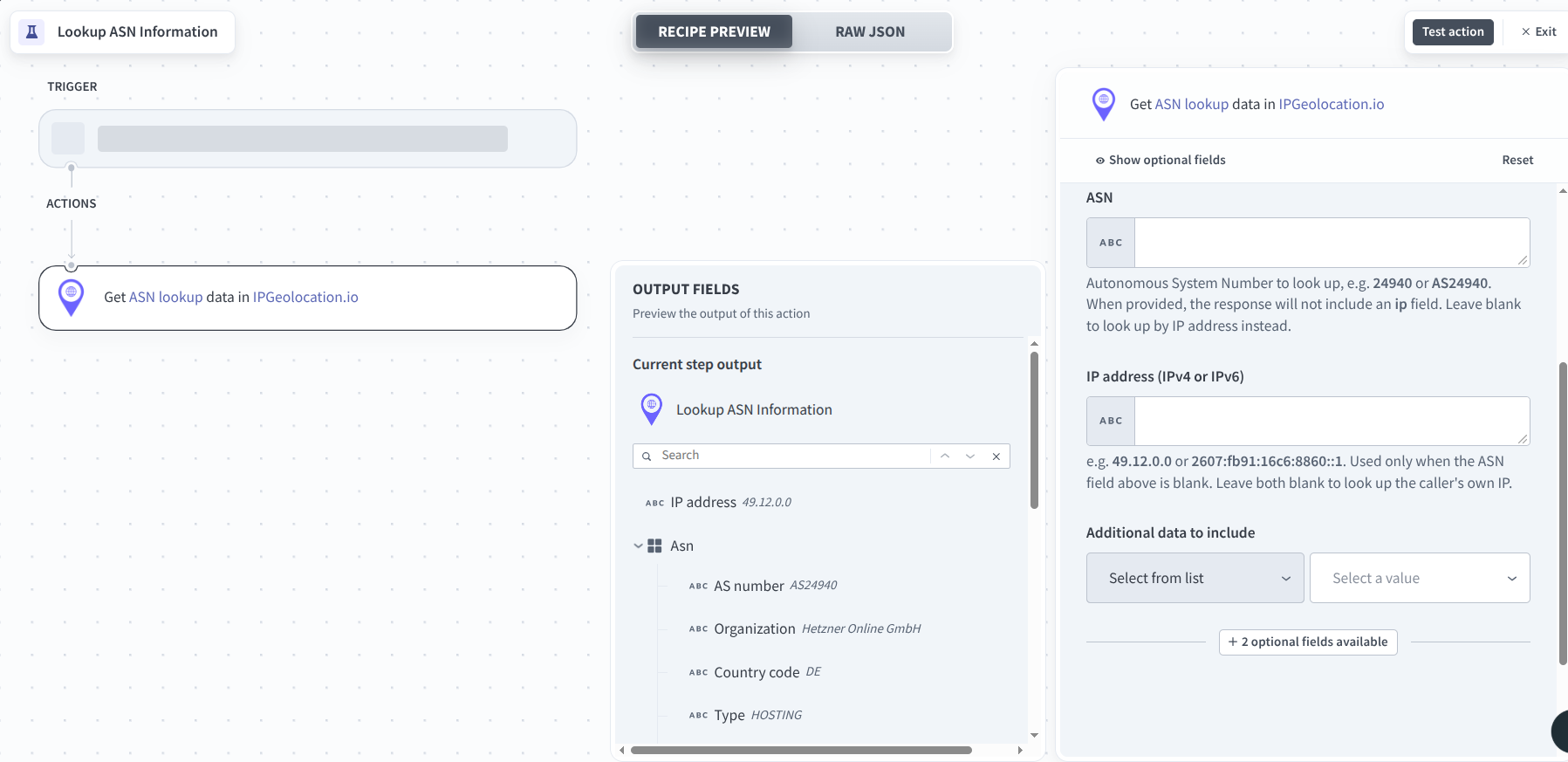
I. Lookup ASN Information
Retrieves information about an Autonomous System Number (ASN) and its associated IPv4 and IPv6 address ranges.
Inputs
- IP or ASN: Enter an IP address or ASN number.
- Include: Adds related network data to the response.
- Fields: Returns only the ASN fields you specify.
- Excludes: Removes ASN fields or objects from the response.
Outputs
Returns ASN information such as asn.as_number, asn.organization, asn.country, and additional ASN data. See the ASN API response fields.
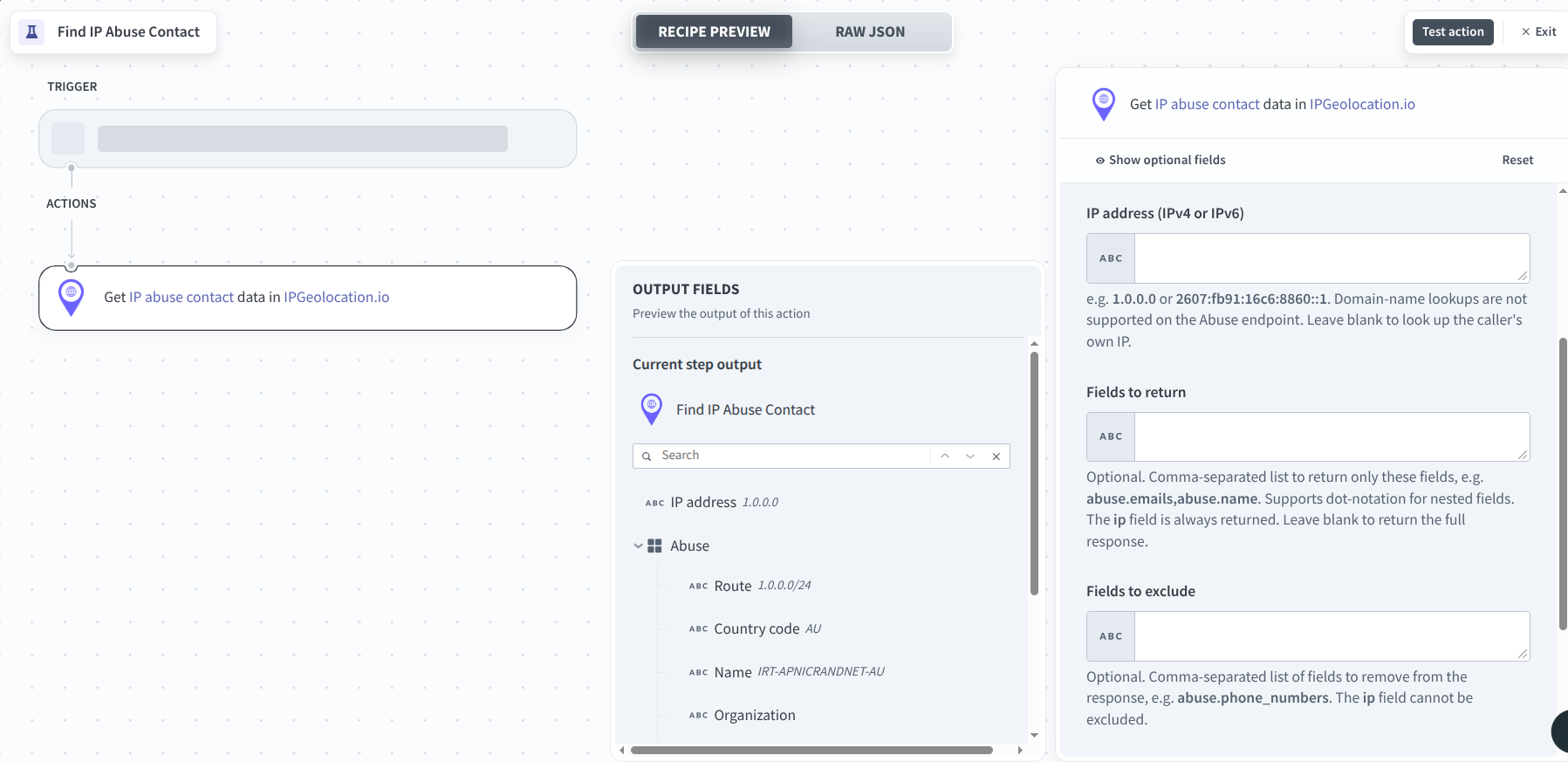
II. Find IP Abuse Contact
Retrieves abuse contact information associated with an IP address.
Inputs
- IP: IPv4 or IPv6 address.
- Fields: Returns only the abuse contact fields you specify.
- Excludes: Removes abuse contact fields or objects from the response.
Outputs
Returns abuse contact data such as abuse.emails, abuse.kind, abuse.organization, and other available contact details. See the IP Abuse Contact API response fields.
4. Time Services
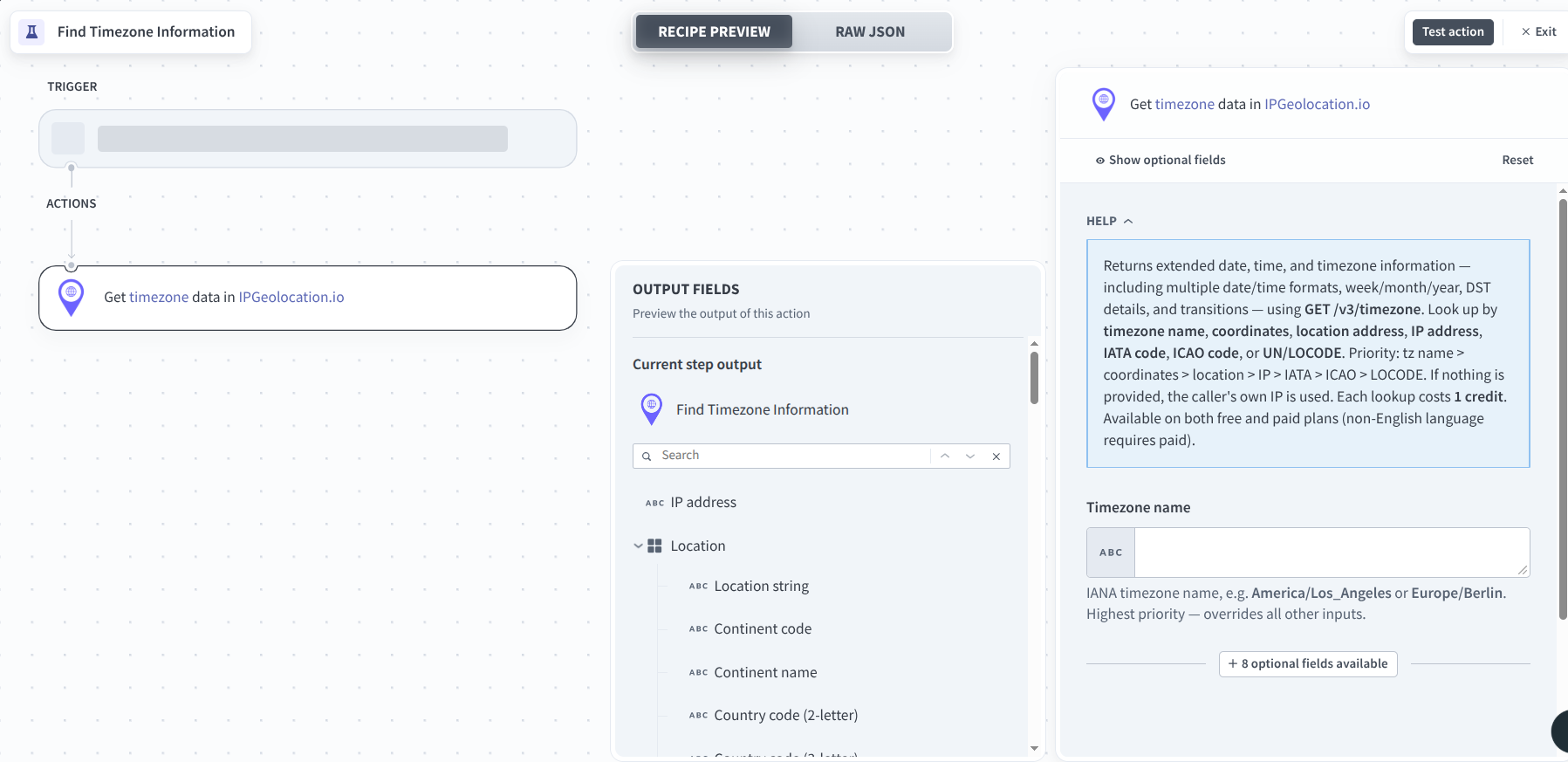
I. Find Timezone Information
Retrieves time zone information using one of the supported input types.
Inputs
- Time Zone: IANA time zone name.
- Location: City or other supported address.
- Coordinates: Latitude and longitude.
- IP: IPv4 or IPv6 address.
- IATA: IATA airport code.
- ICAO: ICAO airport code.
- UN/LOCODE: United Nations Code for Trade and Transport Locations.
Language: Returns location text in a supported language
Outputs
Returns time zone data such as time_zone.name, time_zone.current_time, and time_zone.date_time_wti, along with other available time zone information. See the Time Zone API response fields.
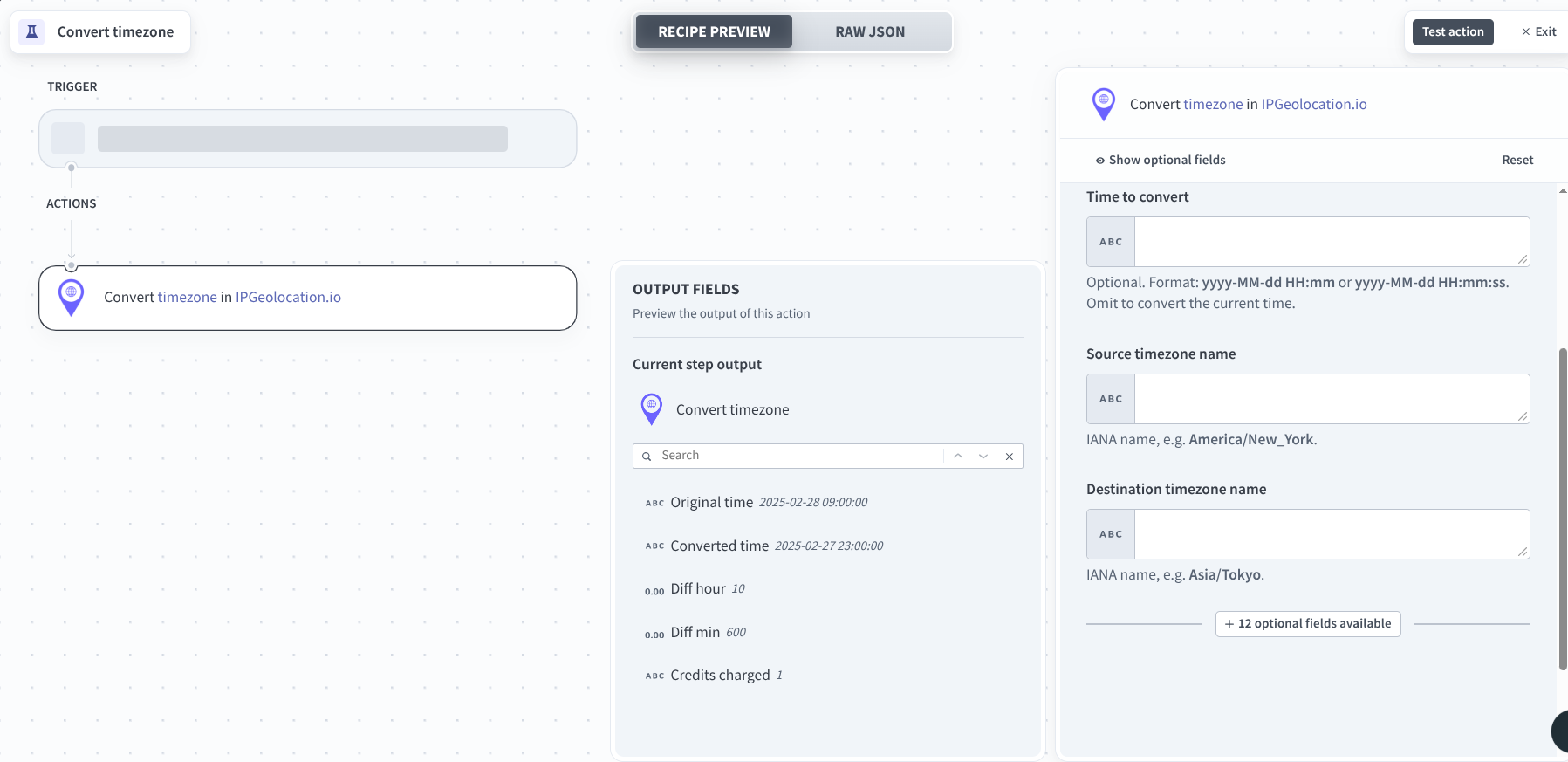
II. Convert Timezone
Converts a date and time between supported locations or time zones.
Inputs
- Time: Date and time to convert. If omitted, the API uses the current time.
- From: Source time zone, location, coordinates, IATA code, ICAO code, or UN/LOCODE.
- To: Destination time zone, location, coordinates, IATA code, ICAO code, or UN/LOCODE.
Outputs
Returns the converted date and time. See the Time Conversion API response fields.
5. Astronomy
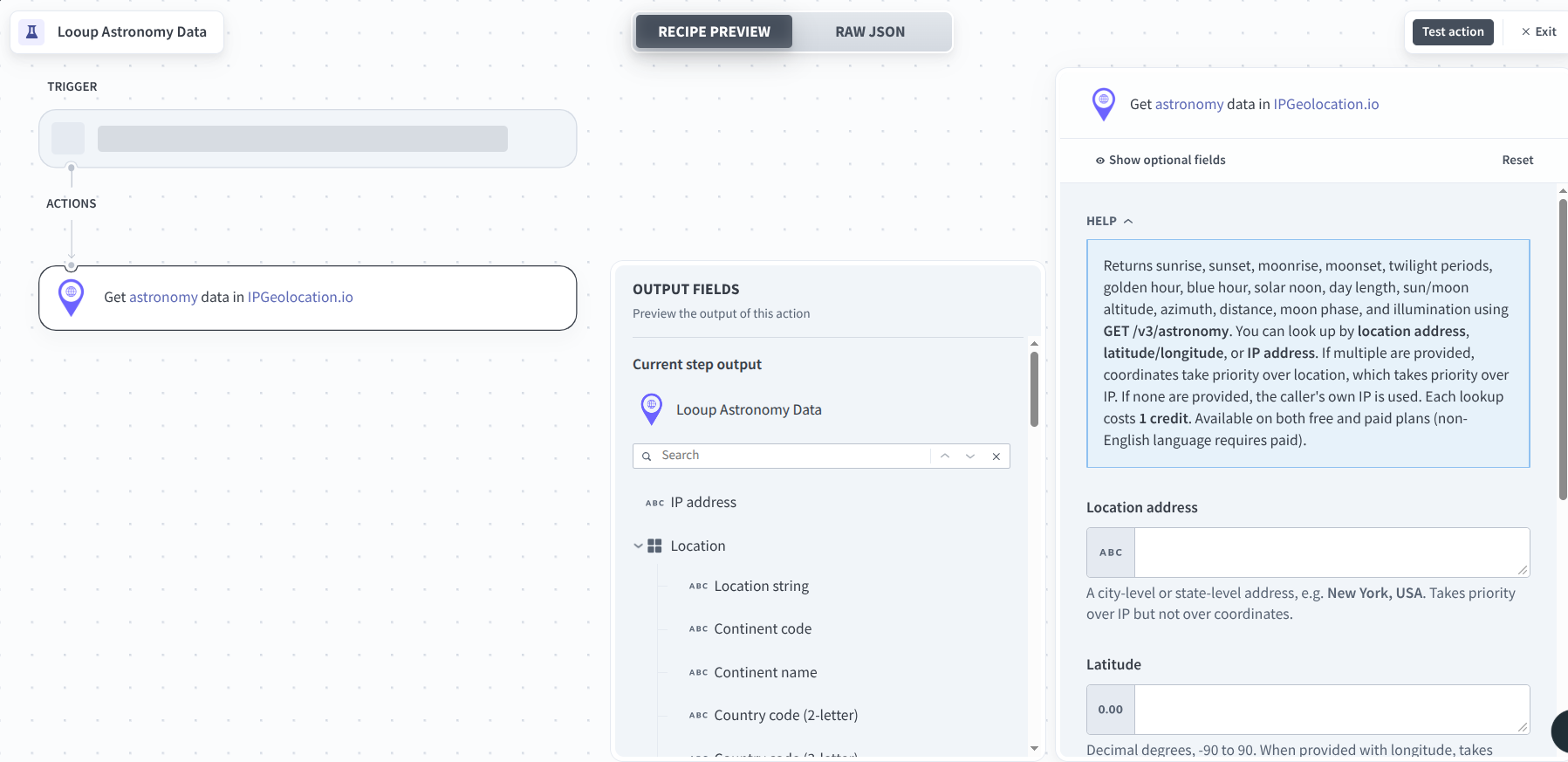
I. Lookup Astronomy Data
Returns Sun and Moon data for a location and date.
Inputs
- Location: Latitude and longitude, location name, or IP address.
- Date: Date for the astronomy data.
- Elevation: Elevation in meters.
- Time Zone: IANA time zone.
- Language: Returns location text in a supported language.
Outputs
Returns data such as astronomy.sunrise, astronomy.sunset, astronomy.moonrise, astronomy.moonset, astronomy.moon_phase, and other astronomy information. See the Astronomy API response fields.
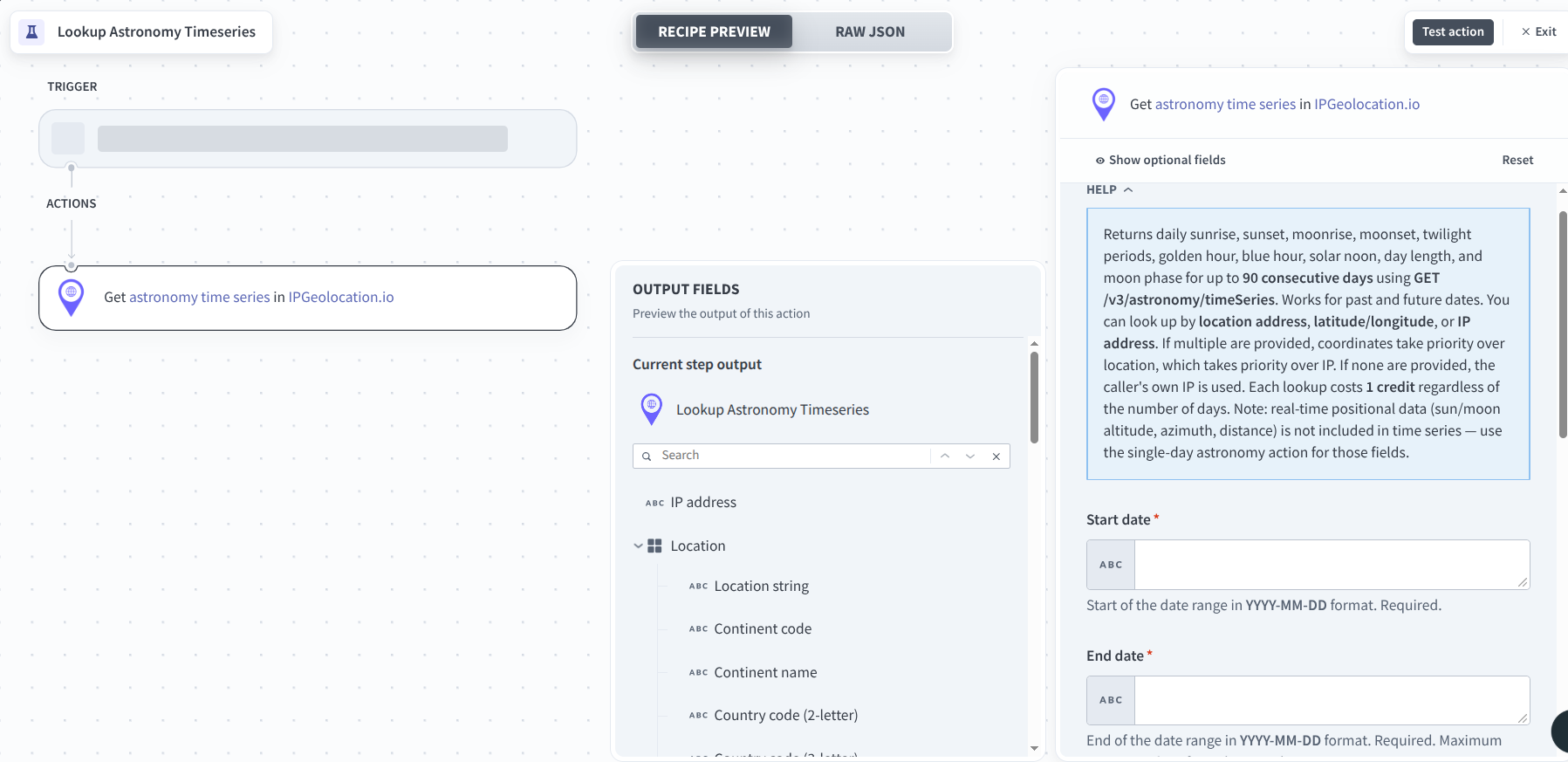
II. Lookup Astronomy Timeseries
Returns daily Sun and Moon data across a date range.
Inputs
- Start Date: Start of the date range.
- End Date: End of the date range.
- Location: Latitude and longitude, location name, or IP address.
- Elevation: Elevation in meters.
- Time Zone: IANA time zone.
- Language: Returns location text in a supported language.
Outputs
Returns daily astronomy data for each date in the requested range. See the Astronomy Timeseries API response fields.
6. User Agent Parsing
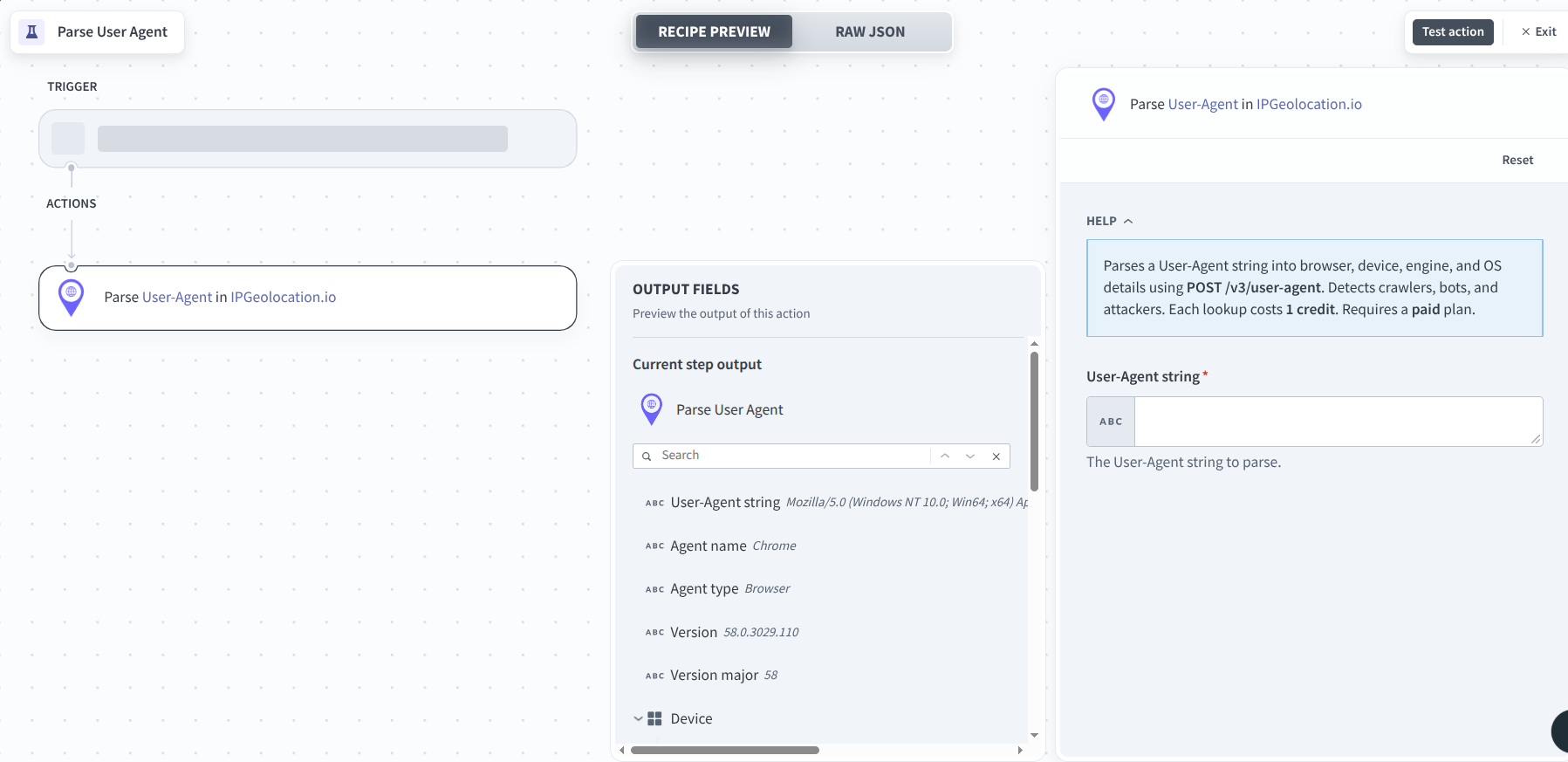
I. Parse User Agent
Parses a user agent string into structured client information.
Inputs
- User Agent: Raw user agent string.
Outputs
Returns browser, device, operating system, and other user agent information. See the User Agent API response fields.
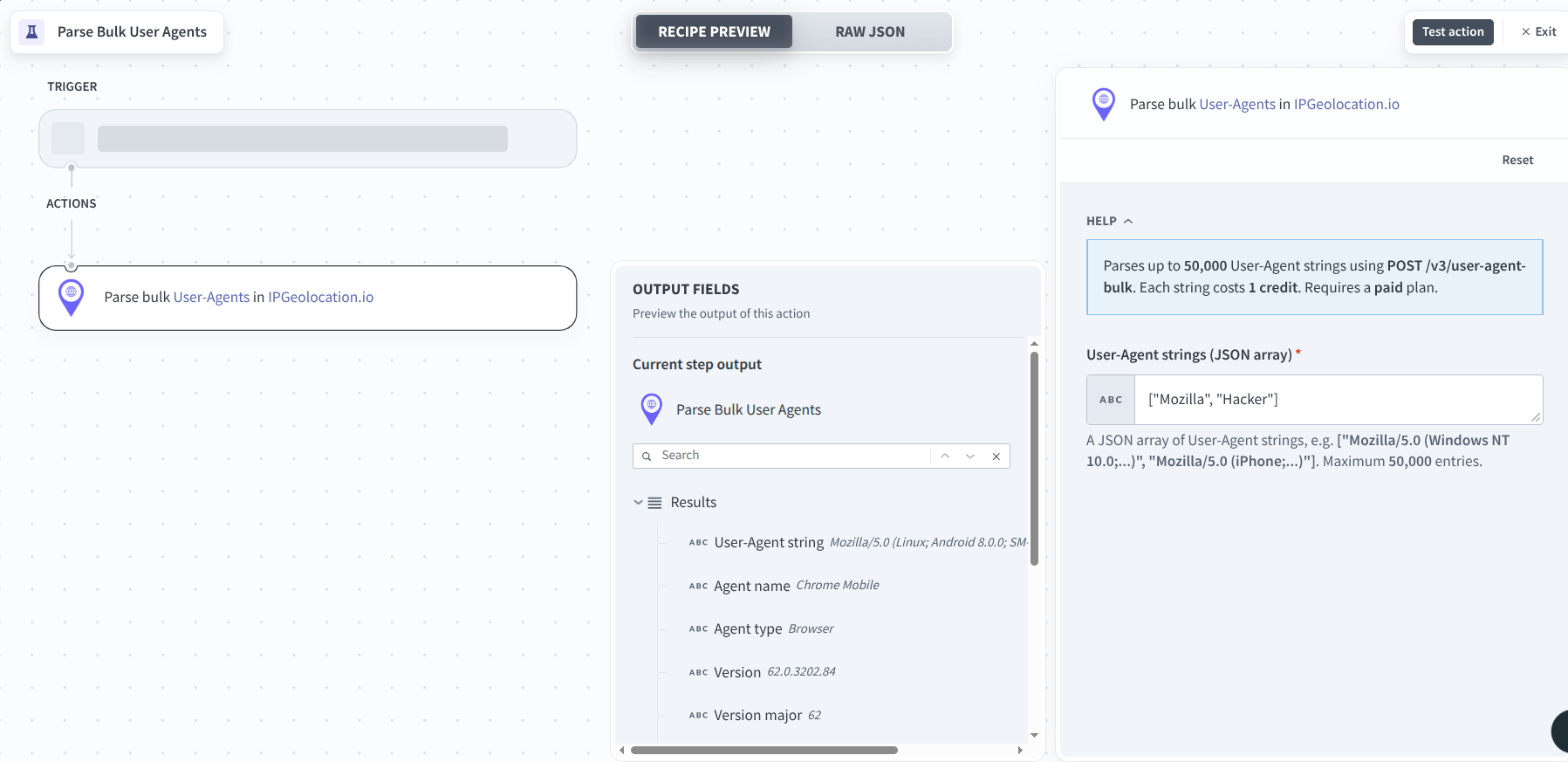
II. Parse Bulk User Agents
Parses multiple user agent strings in a single request.
Inputs
- User Agents: Array of user agent strings.
Outputs
Returns a collection of parsed user agent objects. See the User Agent API response fields.
Troubleshooting Connection Errors
Most connection issues in Workato come down to one of two causes. Both are easy to fix.
1. Invalid credentials
If Workato shows an invalid credentials error when you save the connection, the API key was not accepted.
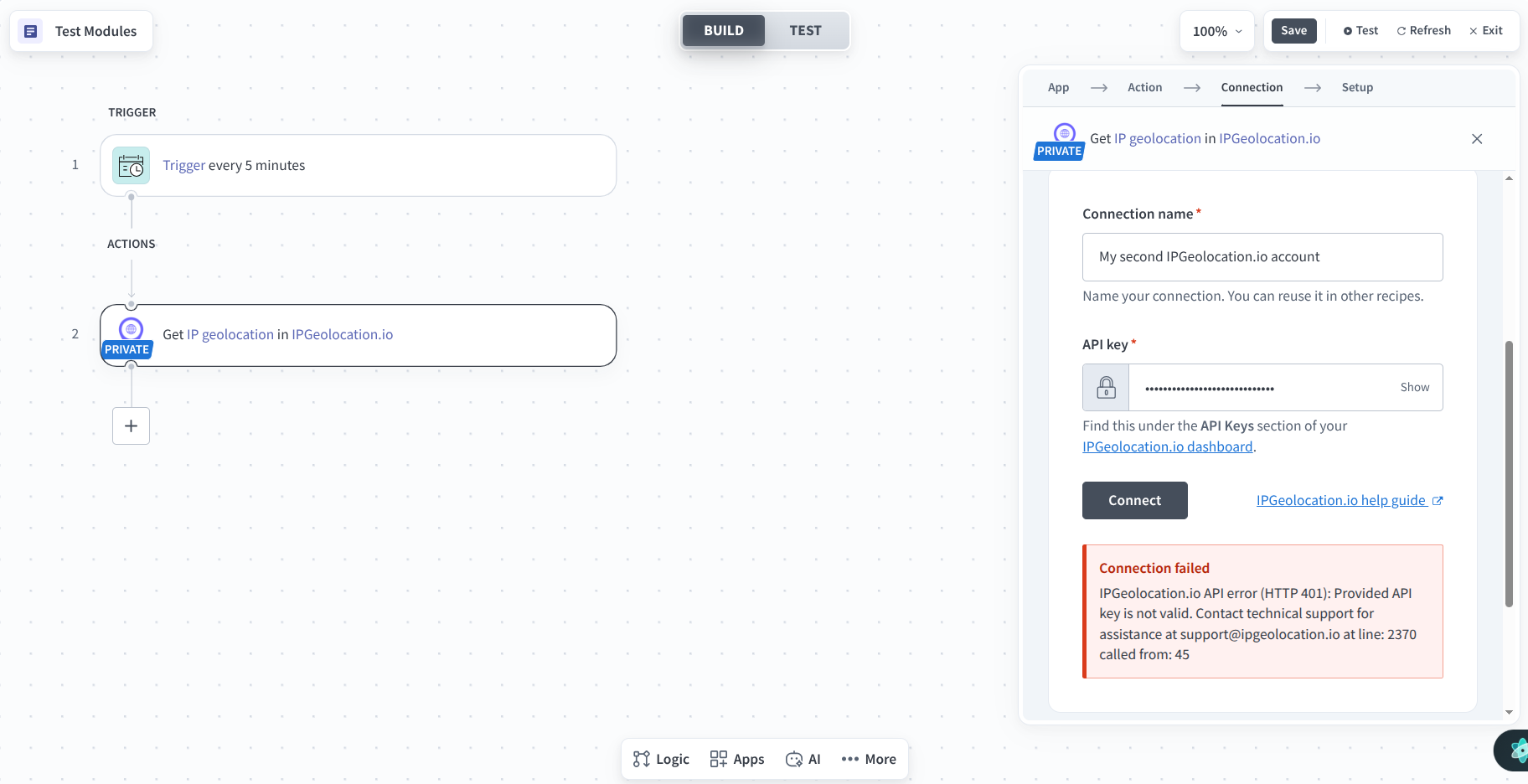
- Open your dashboard and confirm you copied the full API key with no extra spaces.
- Confirm the key belongs to an active account and has not been regenerated or revoked.
- Create a new connection in Workato with the confirmed key rather than editing the failed one.
2. Paid action requested with a free API key
If a recipe step fails on an action such as Get IP Security, Get Bulk IP Geolocation, or Parse User Agent, and your key is on the free plan, you will see an error stating the action requires a paid plan.
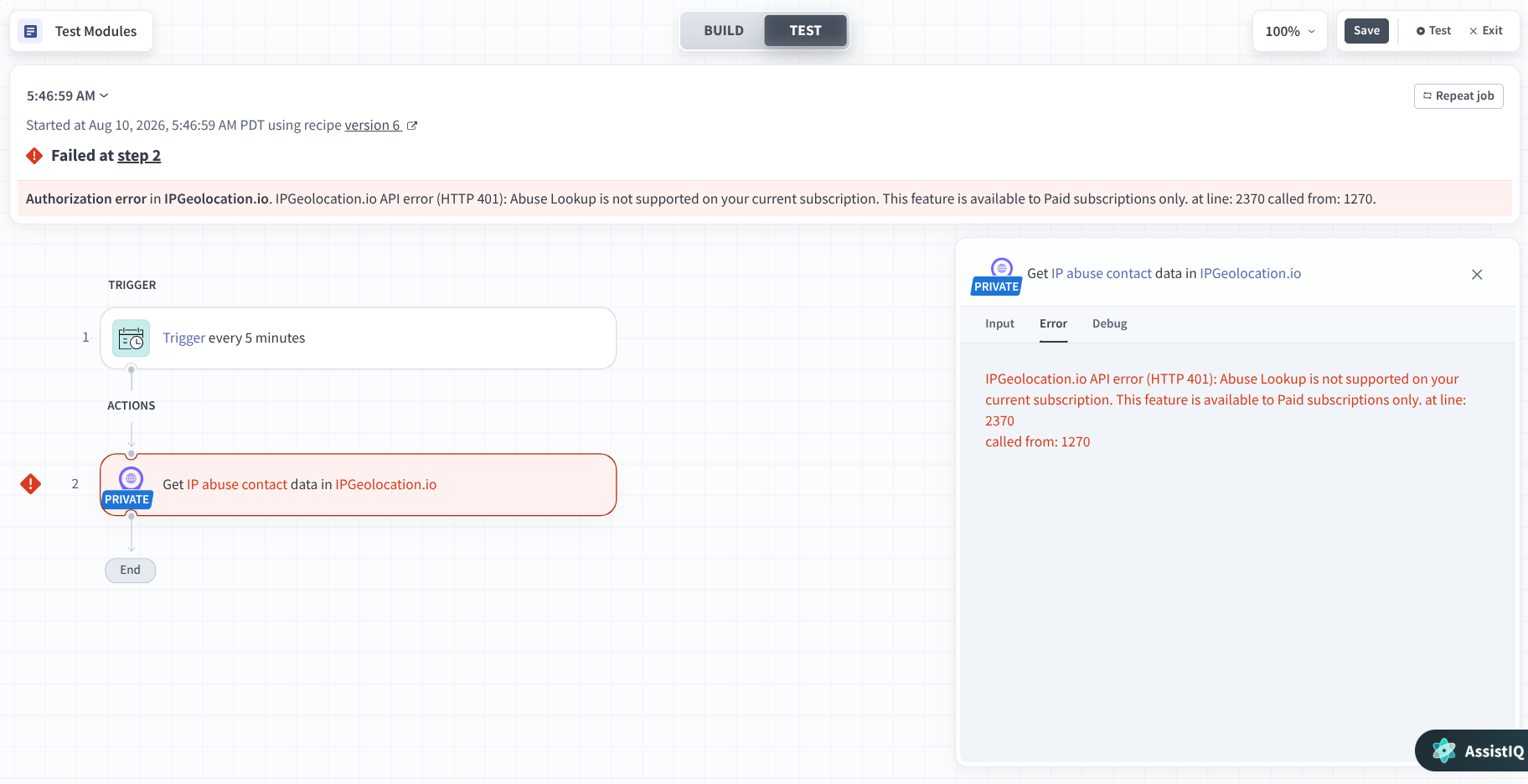
- Check the Action Availability by Plan table above to confirm which plan an action needs.
- Upgrade your API key on the pricing page to unlock the action.
- Re-run the recipe step once your plan is active. No changes to the recipe itself are required.
Recipe Use Cases
1. Enrich Leads with IP Geolocation
Add location data to new leads before sending them to your CRM or other business systems.
Recipe: New lead → Get IP Geolocation → Update CRM
Use Get IP Geolocation to retrieve the lead's country, region, and city from the IP address. Pass the returned data to the next action in your Workato recipe.
2. Detect Risky IP Addresses
Check IP security data during login or transaction workflows and alert your team when an IP matches your security rules.
Recipe: Login or transaction event → Get IP Security → IF/THEN → Slack or email
Use Get IP Security to check signals such as proxy, VPN, Tor, relay, cloud provider, and threat score data. Use an IF/THEN condition to decide when the recipe should send an alert or take another action.
3. Personalize Workflows by Location
Use a customer's location to route records or apply different actions based on country or region.
Recipe: New customer or form submission → Get IP Geolocation → IF/THEN → Application action
Use Get IP Geolocation to retrieve location data from the customer's IP address. Use an IF/THEN condition to route the recipe based on the returned country, region, or city.
4. Route Support Workflows by Time Zone
Use a customer's location to determine their time zone and apply time-based rules to support workflows.
Recipe: New support ticket → Get IP Geolocation → Find Timezone Information → Support action
Use Get IP Geolocation to identify the customer's location, then use Find Timezone Information to determine the relevant time zone. Use the result to route the ticket or schedule the next action according to your workflow rules.
Frequently Asked Questions
Related Integrations
IPGeolocation.io connects to more than 20 platforms beyond Workato. If your stack includes one of these, the same API key works everywhere.