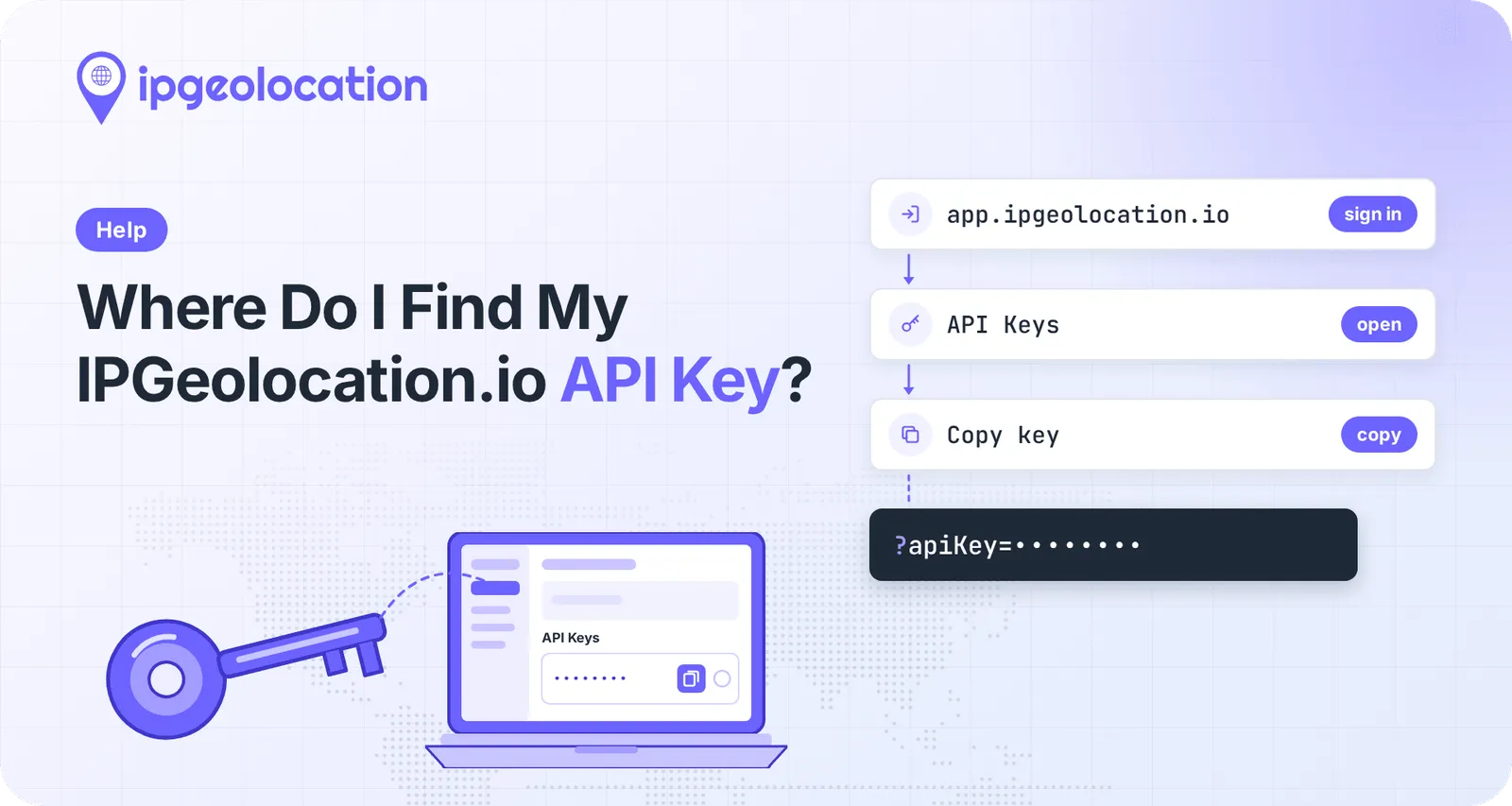
Your IPGeolocation.io API key is in the API Keys section of your dashboard, on the first page you see after you sign in at app. Copy it from there and pass it with every request as the apiKey parameter.
- Sign in to your IPGeolocation.io dashboard with the method you used to sign up: Google, GitHub, or email and password.
- On the Dashboard page, find API Keys below Current API Plan.
- Click the Copy API key icon next to your key. The key is masked except for its last six characters; the eye icon shows it in full.
- Paste the key where your code or tool asks for it: the
apiKeyquery parameter, the API key setting of an official SDK, or the API key field of an integration such as Make or Google Tag Manager.
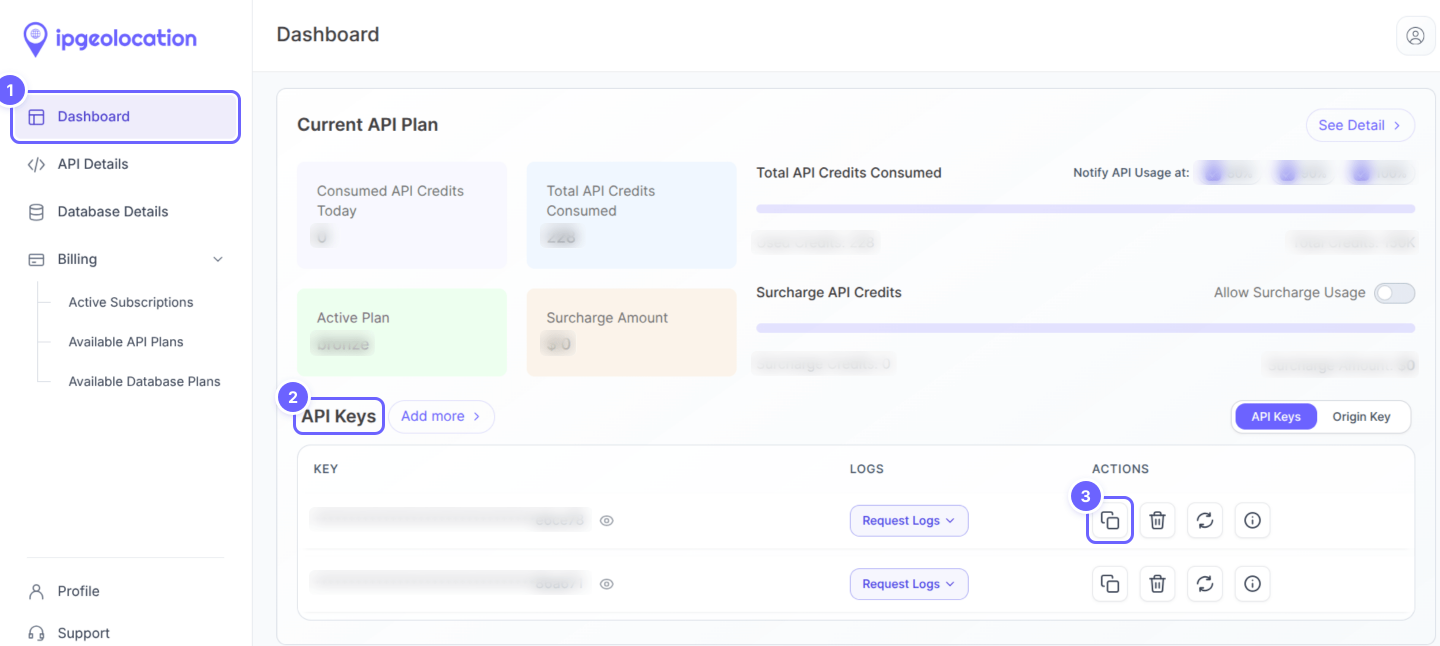
The same section also appears on API Details, in the sidebar.
Don't have a key yet?
You get a key when you create an account; no separate request needed. Create a free account with Google, GitHub, or an email address. Google and GitHub sign-ups go straight to the dashboard. Email sign-ups receive a verification email first; its link expires after 24 hours, and replying to that email sends a new one.
Can't sign in?
Use the same sign-in method you used to sign up. The sign-in page asks for this because an account created with Google or GitHub doesn't start with a password, so email and password won't work for it yet.
If you signed up with Google or GitHub and want to sign in with email too, click Forgot password on the sign-in page, enter your email address, and we'll email you a link to set a password. After that, both ways work. The same link resets a forgotten password on an email account. If nothing gets you in, use Contact support on the sign-in page.
Check that your key works
One request tells you whether the key is valid. Replace YOUR_API_KEY with your key and run:
curl -sS -w '\nHTTP status: %{http_code}\n' "https://api.ipgeolocation.io/v3/ipgeo?apiKey=YOUR_API_KEY&ip=8.8.8.8&fields=location.country_name,location.city"The -w option prints the status code on its own line after the response. A working key returns status 200 and a short JSON body, trimmed to two values by the fields parameter. Expect something like this:
{"ip":"8.8.8.8","location":{"country_name":"United States","city":"Mountain View"}}
HTTP status: 200
No terminal? Paste the URL alone, from https:// to the end of location.city, into your browser's address bar; a working key shows the same JSON. Either way, the URL now holds your key, so don't paste it into chats, tickets, or shared logs.
Test with /v3/ipgeo rather than the getip endpoint, which needs no key: a successful getip call tells you nothing about your key. Once the test passes, the getting-started tutorial takes you through a full first request in Python or JavaScript.
Why does my API key return an error?
A 401 means the API couldn't authenticate the request, or the account behind the key can't use what the request asked for. Work through the causes in the order of the table. The IP Geolocation API error codes list every cause, and the rows here are the ones that come down to your key or your account.
| Status | What It Usually Means | What To Do |
|---|---|---|
| 401 | No apiKey in the request, or the value isn't a valid key | Copy the key again with the Copy API key icon, and check the parameter is named exactly apiKey |
| 401 | The key belongs to a database subscription | Check Active Subscriptions under Billing; API requests need a key from an API subscription, and support can help if you only have a database plan |
| 401 | The subscription is paused, the trial has expired, or the account is past its active-until date | Check Active Subscriptions under Billing, then renew or upgrade |
| 401 | A free-plan key asked for a paid option: security or abuse contact data (include=security or include=abuse), a bulk lookup, a domain lookup, or a language other than English | Remove the option, or see what each plan includes on the pricing page |
| 401 | The account is disabled or locked for abuse | Contact support |
| 400 | The request is malformed: an invalid IP address or domain, or special characters such as brackets, braces, parentheses, a caret, or a vertical bar in the URL, especially inside the key | Check the ip value, then copy the key again with the copy icon instead of selecting it by hand |
| 429 | The account reached a usage limit: the free plan's daily credits, a paid plan's overage cap, or a paid subscription that's past due | Wait for the reset or settle the subscription, or read how credits are charged |
A 429 isn't a key problem: the key was accepted, and the account has reached a usage limit. When a key that worked yesterday starts returning 401, check the subscription before the key. A paused or expired plan returns the same 401 as a mistyped key, and copying the key again won't fix it. Only responses with HTTP status 200 use credits, so none of these errors cost anything.
Replace a key that leaked
If your key shows up somewhere public, such as a repository, a screenshot, or a web page's source, reset it. A reset issues a new key and stops the old one at once, so whoever copied it loses access immediately.
On a paid plan, request the key's logs before you reset: Request Logs next to the key covers the previous 14 days and shows the IP address each call came from, so you can see who used it.
- Click Reset API key next to the key.
- Read the warning, tick the confirmation box, and click Reset now.
- Copy the new key that appears in the same section, then update every app, server, and integration that used the old one. Requests using the old key fail from this point forward.
- Run the test from "Check that your key works" with the new key, and confirm the status is 200.
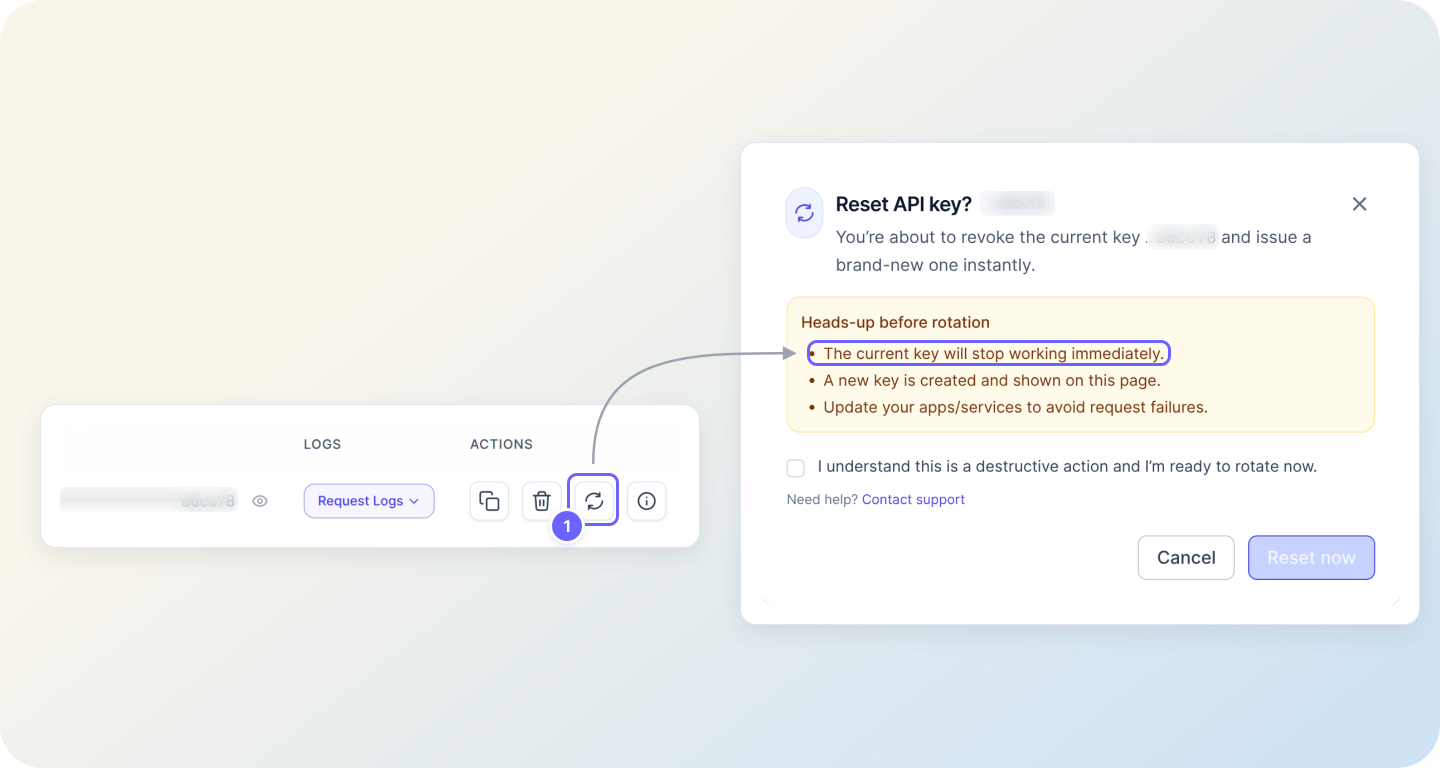
Reset rather than delete. Deleting an API key is permanent, breaks every integration still using the key, and makes you type DELETE to confirm; the dialog itself suggests rotating instead when you're moving clients to a new key. To keep the new key out of your code and your page source, follow Secure your API key before production.
More than one key, or calling from the browser
You need more than one key only to keep uses apart, or to call the API from a web page without exposing a key. There are three setups, each for a different place:
- API key: for server-side code, SDKs, scripts, and integrations. It's the only method bulk lookups accept.
- Origin Key (Request Origin): for JavaScript that runs in the browser on your own domain and its subdomains, on paid plans. It's a separate method, not a kind of API key: the request carries no key, and the API authenticates it by the domain it comes from. Add your site in the Origin URL field.
- Your own backend: on the free plan, where Origin Keys aren't available, have the page call your server and let the server call IPGeolocation.io with the key.
On paid plans, the Add more button above your key list creates extra API keys or Origin Keys, which share one allowance per plan; the API key and Request Origin documentation list it. Separate keys for development, staging, and production mean a leak in one doesn't touch the others, and each key has its own request logs.
On all plans, you can also limit a key to up to 10 IP addresses, or CIDR ranges under IP whitelisting in API Details. Attempting to use the API key from an unlisted IP address will result in a failed request, typically returning a 403 Forbidden status code with the following message.
{
    "message": "Your IP address 'x.x.x.x' is not allowed to use this API key. Please contact technical support for assistance at support@ipgeolocation.io"
}
FAQ
Yes. Every IPGeolocation.io account gets an API key, including free accounts, and the free plan gives you 1,000 credits a day with no credit card. Paid plans add more credits, paid modules, extra keys, and Origin Keys; the pricing page compares them.
One API key can authenticate requests across the endpoints your plan includes. On paid plans, supported single lookups can also use a registered Request Origin. Bulk lookups require an API key. /v3/getip needs no key at all.
Yes. IPGeolocation.io database subscribers need a valid API key to download database files; the database documentation lists the files. A key tied to a database subscription returns 401 on API lookups, so use an API subscription's key for API requests.
No. An IPGeolocation.io API key in frontend JavaScript is visible to anyone who opens the browser's developer tools, and every request they make with it uses your credits. Use an Origin Key on a paid plan, or route browser requests through your own server.
A free IPGeolocation.io account has one API key. Paid plans include one to three extra keys or Origin Keys, depending on the plan, and you can add more at $2.50 a month each; the API authentication documentation lists the count for each plan.