

Velociraptor IP Enrichment with IPGeolocation.io: Geolocation, VPN Detection and Threat Scores
Overview
Velociraptor is a free, open source tool for digital forensics and incident response (DFIR). During an investigation it collects IP addresses from many places: network connections on endpoints, login events, firewall logs and indicator lists. This guide shows how to enrich each of those IPs with IPGeolocation.io databases, right on your Velociraptor server, and get its location (country, city), ASN, company, abuse contact and security data: a threat score and flags for VPN, proxy, residential proxy, Tor, relay, bot, spam and known attackers.
You add one artifact, Server.Enrichment.IPGeolocation, and point it at the databases you subscribe to: the IP Geolocation Database, IP to ASN Database, IP to Company Database, IP Abuse Contact Database, IP Security Database, Residential Proxy Database and IP to Hosting Database.
The databases sit on your server, so lookups make no API calls, cost nothing per IP, and the IP addresses from your investigation never leave your network. For help choosing, see when to use an IP database instead of an API.
At a glance
| Topic | Details |
|---|---|
| What you add | One server artifact: Server.Enrichment.IPGeolocation |
| Where lookups run | On the Velociraptor server, with Velociraptor's built-in geoip() function |
| Databases | Any IPGeolocation.io database in MMDB format |
| What you get | One row per IP with location, network, company, abuse contact and security columns |
| Reuse | Helper functions for your own artifacts and notebooks, such as IPGeoThreatScore(IP=...) |
| Tested with | Velociraptor 0.77.4 |
Where it helps
- Triage remote connections. Enrich the remote IPs of a netstat hunt and see at once which endpoints talk to Tor, VPNs or known attackers.
- Check suspicious logins. Add country, ASN and residential proxy data to the source IPs of RDP, SSH or VPN logins.
- Score an indicator list. Paste the IPs from a threat report and sort them by threat score.
- Send abuse reports. Get the abuse contact email of the network behind an attacking IP.
How it works
- You copy the
.mmdbfiles into one folder on the Velociraptor server and enter that folder in one setting. - When the artifact runs, Velociraptor's
geoip()function looks up each IP in every.mmdbfile in the folder. - The artifact recognizes what each file contains (location, ASN, company, abuse contact, security, residential proxy or hosting) and turns the results into one row per IP. Columns stay empty when no file has that data for the IP.
geoip() memory-maps the files instead of loading them, so even the full IP Security Database works with little memory. See Large databases.
Requirements
- A Velociraptor server (tested with 0.77.4) and a user with the administrator role, to add artifacts and edit the server metadata.
- One or more IPGeolocation.io databases in MMDB format.
- Shell access to the server, to copy the database files.
Step 1: Copy the databases to the server
Download the MMDB archives of your databases from IPGeolocation.io. Each archive contains the .mmdb file(s), a README.md and a checksum.txt with SHA-256 hashes.
Unpack each archive, check the files, and copy all .mmdb files into one folder the Velociraptor service can read, for example /opt/ipgeolocation:
unzip security-pro-ip-security-v4-weekly.zip -d /tmp/ipgeo-release
(cd /tmp/ipgeo-release && sha256sum -c checksum.txt)
sudo mkdir -p /opt/ipgeolocation
sudo mv /tmp/ipgeo-release/*.mmdb /opt/ipgeolocation/
Do the same for each database you have. Separate and combined databases all go into the same folder. Keep only your current IPGeolocation.io files there: the artifact reads every .mmdb file in the folder.
Step 2: Add the artifact
- Open Server.Enrichment.IPGeolocation.yaml and copy its contents.
- In the Velociraptor GUI, open View Artifacts and click Add an Artifact.
- Replace the template in the editor with the copied artifact and click Save.
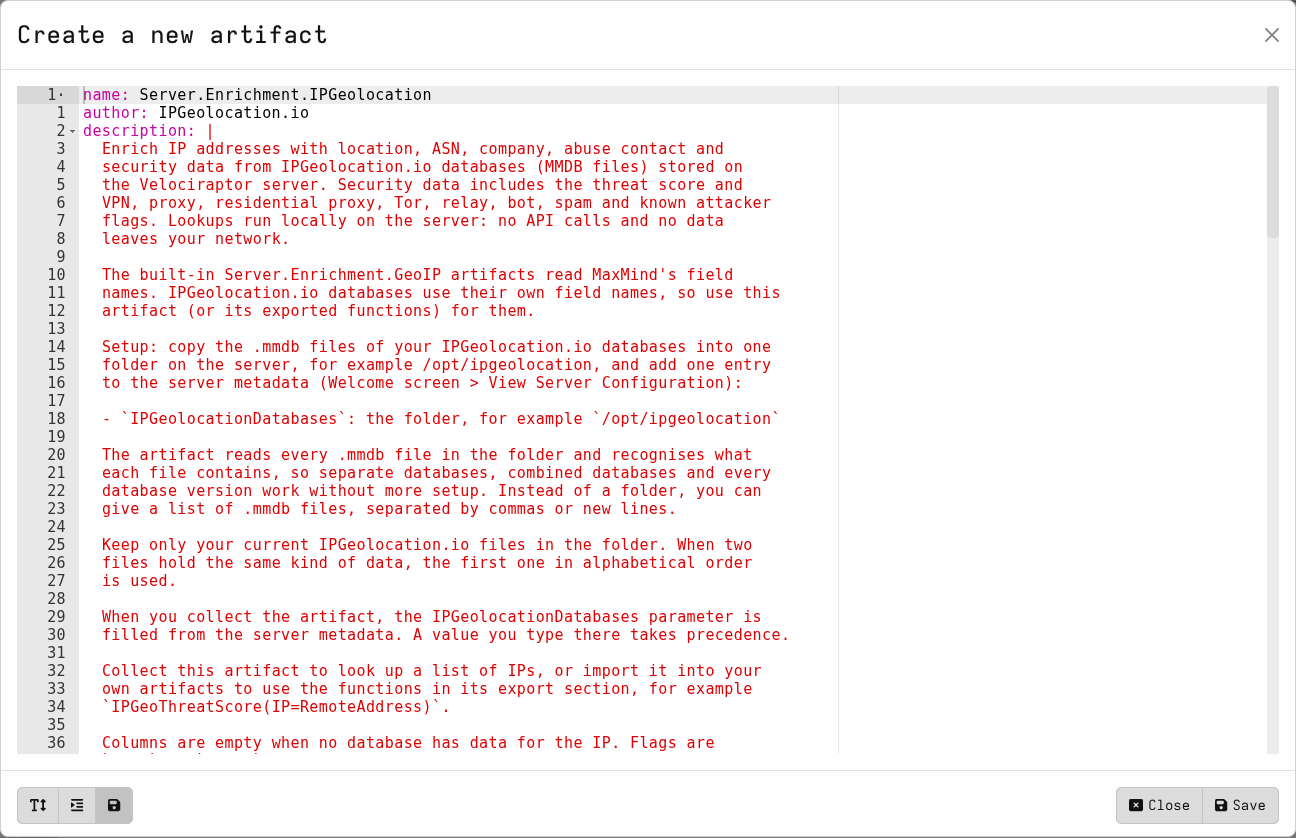
To find it later, set the artifact list filter to Server Artifacts and search for IPGeolocation.
Step 3: Tell the artifact where your files are
Add one setting to the server metadata, the list of settings on the Velociraptor server:
| Setting Name | Value |
|---|---|
IPGeolocationDatabases | /opt/ipgeolocation |
That is the only setup. The artifact reads every .mmdb file in the folder and works out what each file contains, so it handles separate databases, combined databases such as City, Company, ASN, Abuse & Security, and every database version. When you add a database later, copy its file into the folder.
To add the setting:
- Click the Velociraptor logo to open the Welcome screen, then click View Server Configuration.
- Click +, enter
IPGeolocationDatabasesas the key and the folder as the value, and click Yes do it!.

You can also add it from a notebook cell:
SELECT server_set_metadata(metadata=dict(IPGeolocationDatabases="/opt/ipgeolocation"))
FROM scope()
Instead of a folder, the value can be a list of .mmdb files, separated by commas or new lines. If two files contain the same kind of data, for example the IP Geolocation Database and a combined database, the artifact uses the first one in alphabetical order.
Step 4: Look up IP addresses
- Open Server Artifacts and click New Collection (+).
- Search for
IPGeolocation, select Server.Enrichment.IPGeolocation and click Configure Parameters. - Enter the IP addresses in the IP list, one per row. IPv4 and IPv6 both work.
- Click Launch.
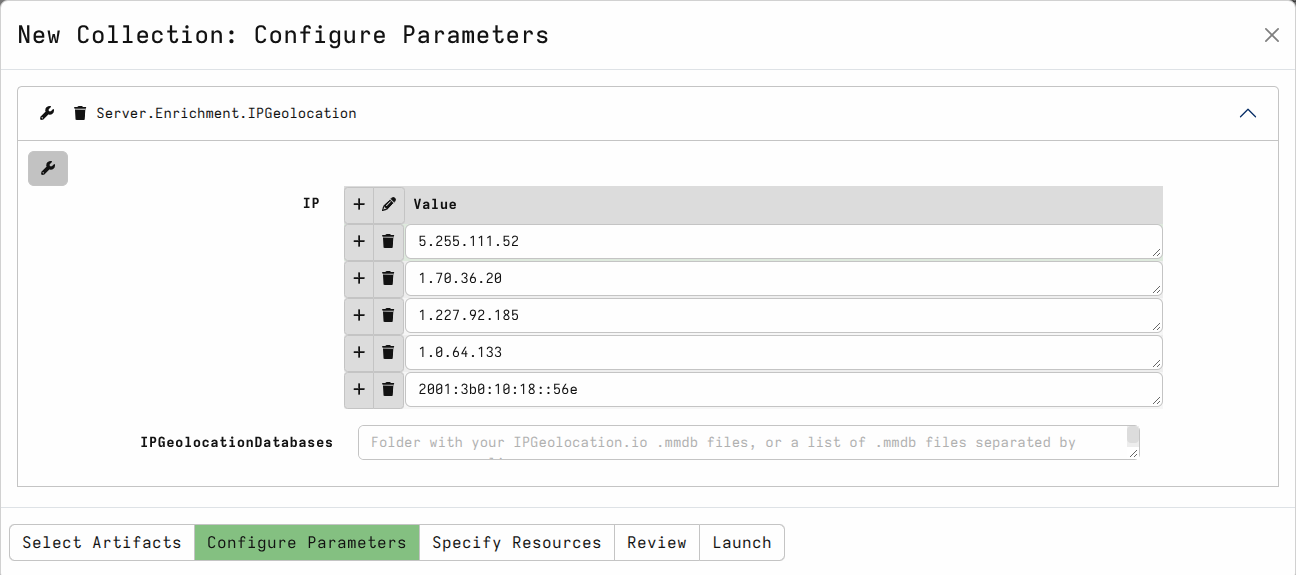
You don't need to fill in IPGeolocationDatabases: Velociraptor fills it from the server metadata when the collection starts. A value you type there is used instead, for that collection only.
Open the collection's Results tab to see one row per IP:
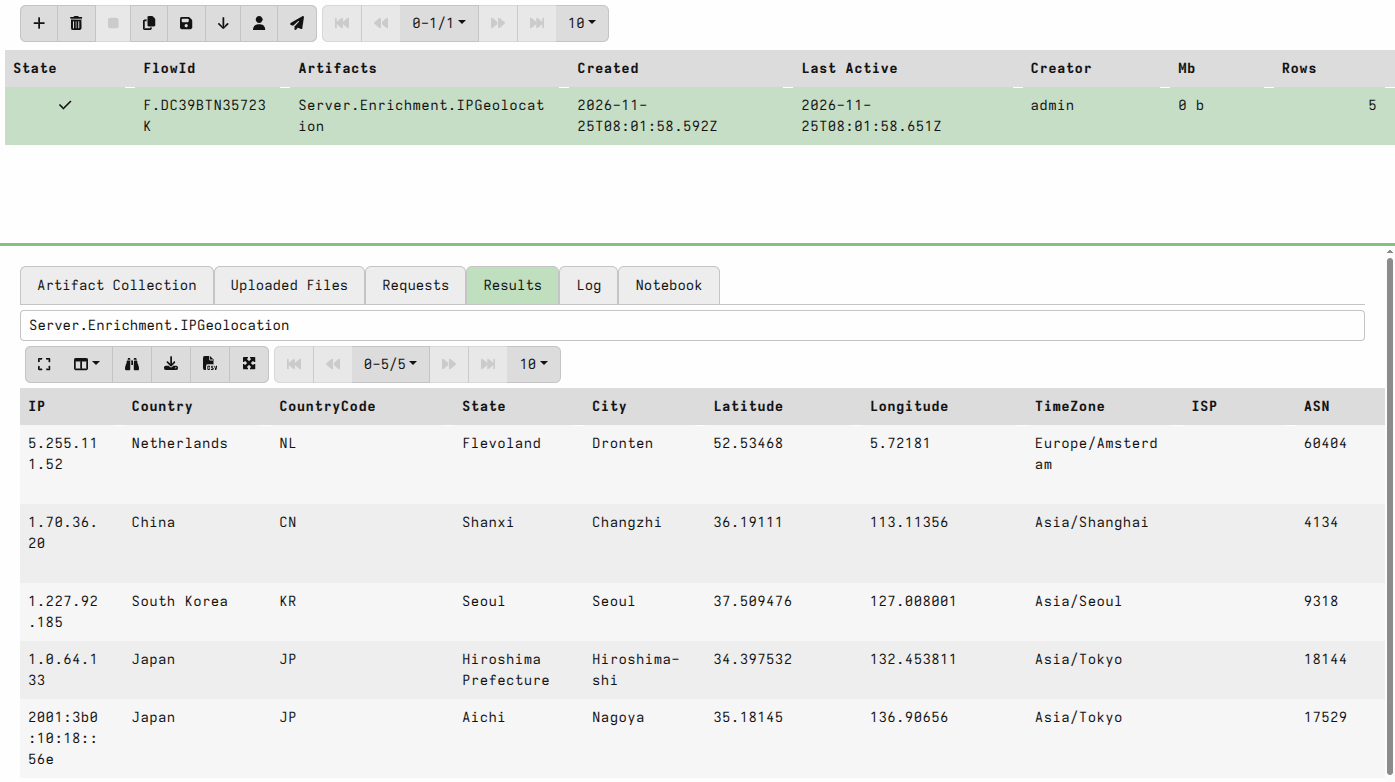
1. Output columns
| Column | Comes From |
|---|---|
IP | Your input |
Country, CountryCode, State, City, Latitude, Longitude, TimeZone | Location data |
ISP | ISP data (the City & ISP and ISP databases) |
ASN, ASOrganization | ASN data |
Company, CompanyType | Company data |
AbuseEmails | Abuse contact data |
ThreatScore (0 to 100), IsVPN, IsProxy, IsResidentialProxy, IsTor, IsRelay, IsKnownAttacker, IsBot, IsSpam, CloudProvider | IP Security Database |
HostingProvider | IP to Hosting Database |
ResidentialProxyProviders | Residential Proxy Database (a list of provider names in v2, one name in v1) |
Each column comes from whichever file in the folder has that kind of data, including combined databases.
The Is... flags are true or false only when the security database has a record for the IP. When it has none, they stay empty: no data does not mean the IP is safe.
Practical examples
1. Show the risky IPs first
Every collection has a Notebook tab. Edit its cell to keep only the security columns and sort by threat score:
SELECT IP, Country, ASOrganization, ThreatScore,
       IsTor, IsVPN, IsResidentialProxy, IsKnownAttacker
FROM source(artifact="Server.Enrichment.IPGeolocation")
ORDER BY ThreatScore DESC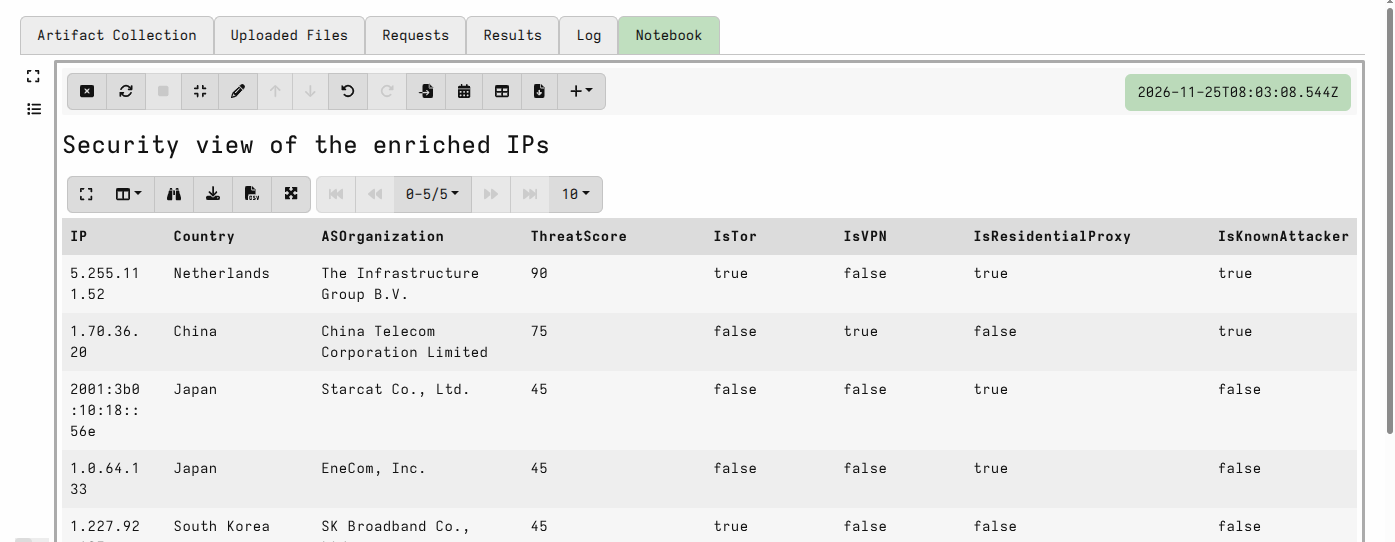
2. Enrich the remote IPs of a netstat hunt
After a hunt with Windows.Network.Netstat, open the hunt's Notebook tab and replace the cell with this query. It imports the artifact's helper functions, adds four columns to every connection, and keeps only connections to IPs with a threat score of 80 or more, or to Tor:
LET _ <= import(artifact="Server.Enrichment.IPGeolocation")

SELECT *,
       IPGeoCountry(IP=`Raddr.IP`) AS Country,
       IPGeoASOrganization(IP=`Raddr.IP`) AS ASOrganization,
       IPGeoThreatScore(IP=`Raddr.IP`) AS ThreatScore,
       IPGeoFlag(IP=`Raddr.IP`, Name="is_tor") AS IsTor
FROM source(artifact="Windows.Network.Netstat")
WHERE IPGeoThreatScore(IP=`Raddr.IP`) >= 80
   OR IPGeoFlag(IP=`Raddr.IP`, Name="is_tor")
The backticks are needed because the netstat column names contain a dot.
3. Use the helpers in your own artifact
List the artifact under imports: and call its functions in your queries. They read the IPGeolocationDatabases setting from the server metadata:
name: Custom.Server.RiskyConnections
type: SERVER
imports:
  - Server.Enrichment.IPGeolocation
parameters:
  - name: RemoteIPs
    type: json_array
    default: '["5.255.111.52"]'
sources:
  - query: |
      SELECT _value AS RemoteIP,
             IPGeoCountry(IP=_value) AS Country,
             IPGeoASOrganization(IP=_value) AS ASOrganization,
             IPGeoThreatScore(IP=_value) AS ThreatScore,
             IPGeoFlag(IP=_value, Name="is_known_attacker") AS IsKnownAttacker
FROM foreach(row=RemoteIPs)| Helper Function | Returns |
|---|---|
IPGeoCountry(IP), IPGeoCountryCode(IP), IPGeoCity(IP) | Country name, two-letter country code, city |
IPGeoASNumber(IP), IPGeoASOrganization(IP) | AS number and its organization |
IPGeoThreatScore(IP) | Threat score from 0 to 100 |
IPGeoFlag(IP, | One security flag, such as "is_vpn" or "is_tor": true, false, or empty when there is no record |
IPGeoHostingProvider(IP) | Hosting provider name |
IPGeoSecurity(IP) | The full record from the IP Security Database |
IPGeoValue(Records=IPGeoRecords(IP=...), | Any other field, by its path in the database records |
For every field inside the records, see the MMDB field reference.
Large databases
geoip() memory-maps each file and reads only the parts a lookup needs, so the file size does not set the memory use. Tested on Velociraptor 0.77.4 with a folder of 8 database files, including the full IP Security Database (db-ip-security.mmdb, 13,778,518,648 bytes):
| Test | Result |
|---|---|
| 10,000 random public IPv4 addresses in one collection | 18 seconds in total; Velociraptor's own memory peaked at 55 MB |
Linux also keeps the parts of the files that lookups touch in its page cache, and frees that memory when other programs need it.
Keeping the databases up to date
IPGeolocation.io publishes new database releases daily or weekly, depending on your plan, with the same file names. To install a release:
- Unpack it into a folder on the same disk as the live files, for example
/opt/ipgeolocation/.release, and runsha256sum -c checksum.txtthere. - Move each new
.mmdbfile over the old one withmv. The rename is atomic, so a lookup never reads a half-copied file.
New collections and notebook cells open the new files. You don't need to restart Velociraptor. A query that is already running, such as a server event artifact, keeps reading the file it opened until it restarts.
Troubleshooting
All database columns are empty.
- Check the
IPGeolocationDatabasessetting in View Server Configuration: the name, and the folder path. - Make sure the
.mmdbfiles are directly in that folder, not in subfolders, and that the Velociraptor service user can read them. - If you listed files instead of a folder, open the collection's Log tab. A line such as
geoip: open /opt/ipgeolocation/db-ip-location.mmdb: no such file or directorynames the file that is wrong.
Some IPs have no data. The IP is not in that database, for example a private address.
The security flags are empty. The folder has no IP Security Database, or it has no record for the IP. This is different from false. Older versions of the IP Security Database have fewer flags: version 1 has no VPN or relay flag, so IsVPN and IsRelay stay empty with it.
Server.Enrichment.GeoIP returns empty columns. That built-in artifact expects MaxMind's field names. Use Server.Enrichment.IPGeolocation.
Support and resources
| Resource | Link |
|---|---|
| Artifact file | Server.Enrichment.IPGeolocation.yaml |
| MMDB field reference | integrations/mmdb-field-reference |
| IPGeolocation.io databases | ipgeolocation.io/db-pricing.html |
| Velociraptor documentation | docs.velociraptor.app |
Velociraptor geoip() function | docs.velociraptor.app/vql_reference/other/geoip |
| Contact support | ipgeolocation.io/contact.html |